
Navigating the Intelligence Interface

The application uses a shared left navigation. Intelligence is a destination within it. The items below are common destinations; visibility depends on your role, project access, enabled features and profile setup.
Left navigation
| Item | What it shows |
|---|---|
| Dashboard | Volume, asset and scan totals for the selected period and project, with recent scans. |
| Intelligence | Your published profile, your notifications, the coverage review, and assistant connections. |
| Videos | Recordings, with the number of assets found in each. |
| Assets | The gallery of individual readings, with an exceptions filter. |
| Projects | Sites and yards, their users and their integrations. |
A global search sits above the navigation and opens with Ctrl and K. Your account and sign-out are at the bottom of the sidebar, and the application version is shown beneath them.
The three filters
Dashboard, Videos and Assets share the same three controls across the top. They apply together, and getting an unexpected result is more often a filter than a data problem.
- Date range such as Sep 1st 2026 to Sep 4th 2026.
- Period such as This Month.
- Project, which limits everything below it to one site.
The Intelligence hub
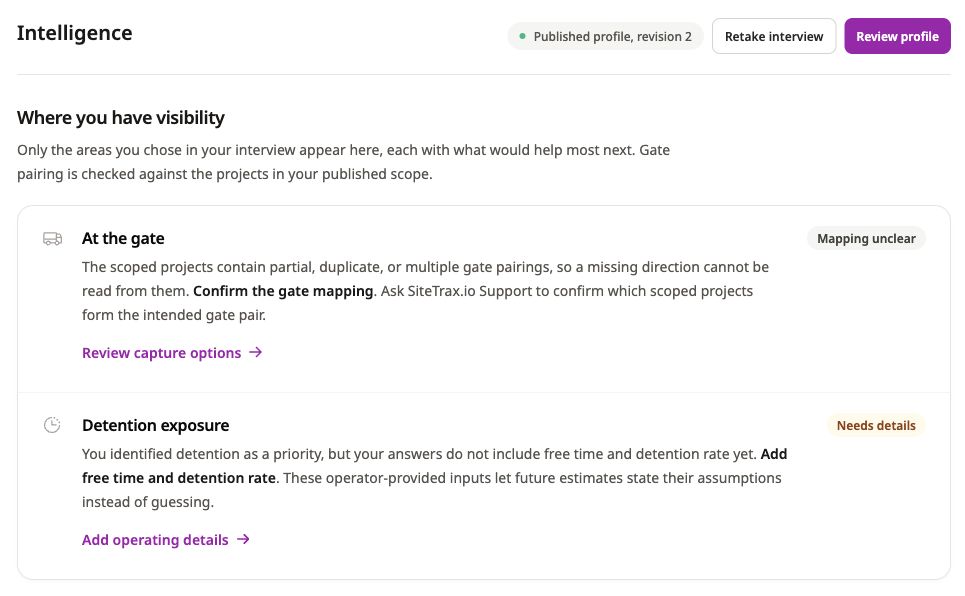
Live application screenshot, captured 22 September 2026. The guidance and statuses shown are examples from this profile; yours depend on your answers and project scope. Select the image to view it at full size.
The hub has threefour parts.
- Profile status. The published revision number, with Retake interview and Review profile. If you have an edit in progress, the hub says so and offers Resume editing, and confirms your published profile stays active while you finish.
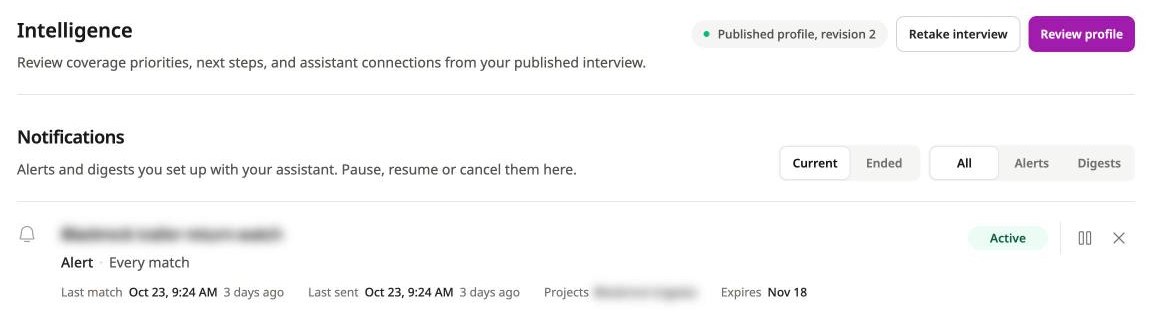
Live application screenshot, captured 26 October 2026. Customer names are blurred.
Assistant setup is documented in the dedicated provider sections.
Asset detail
Selecting an identifier opens the record behind a reading:reading. assetThe ID,header project,shows the identifier, with the check digit boxed for a container, its equipment type and any paired chassis, and the project and scan andtime. processingVideo times,opens assetthe type,source statusrecording, codeShare and heading,Public withpage anlet imageyou pass the record on, and location where available. Correct and Incorrect let you tell SiteTrax.io whether the reading matches the image,image.
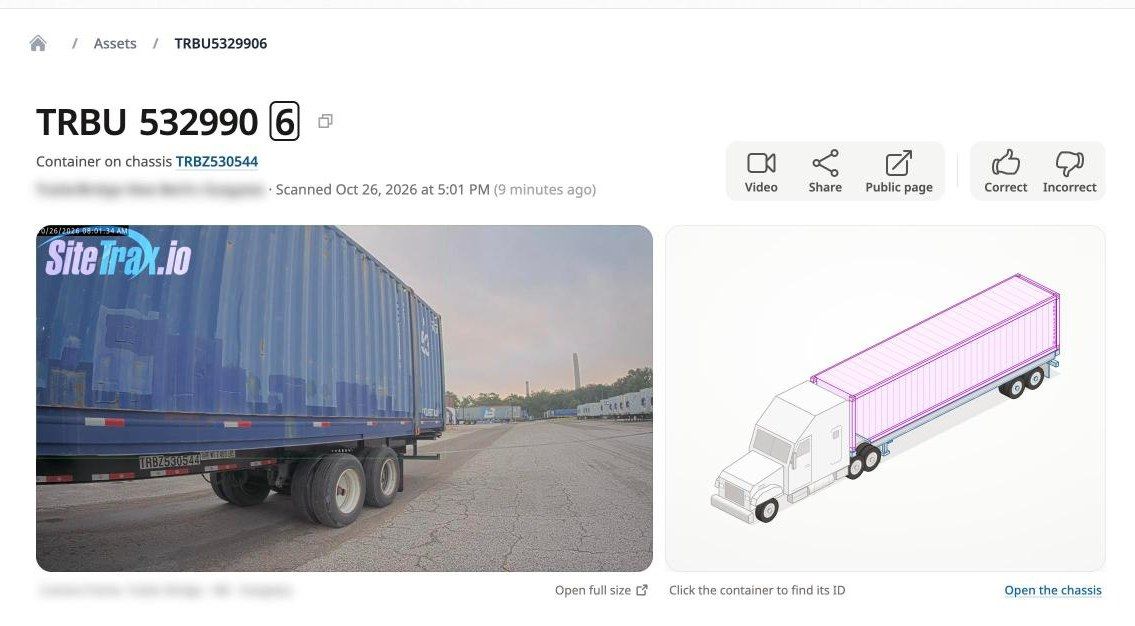
Live application screenshot, captured 26 October 2026. Project and camera names are blurred.
Below the camera frame and the fullequipment payloaddiagram, the record shows the direction of travel, the read result, the registered owner of a container prefix, the camera, and a map of where the reading was captured. Further down are:
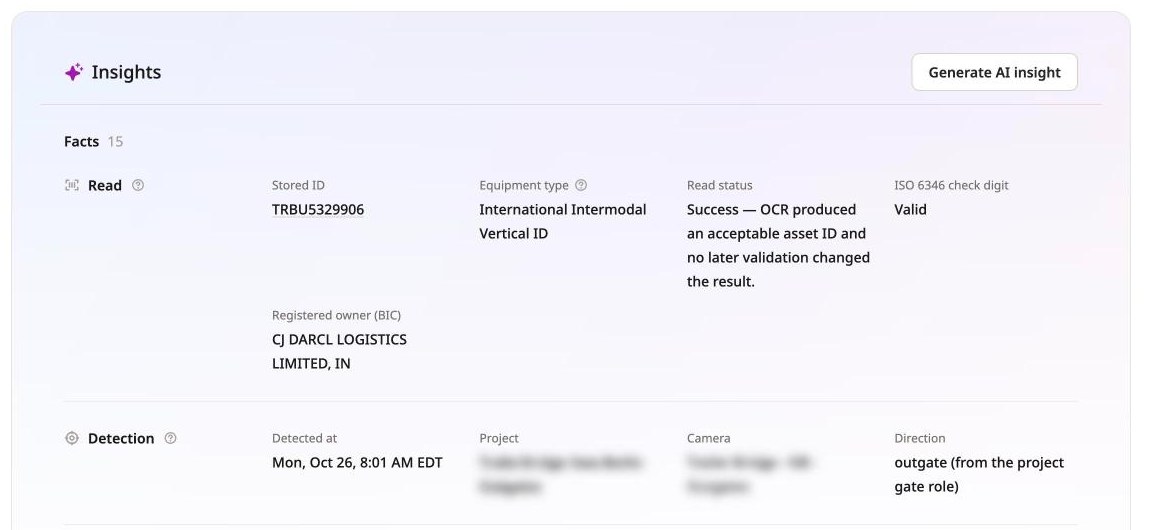
Live application screenshot, captured 26 October 2026. Project and camera names are blurred.
AI insights
Generate AI insight asks a language model to write a short summary of what is availablenotable underneath.about the record. The model receives only the facts listed under Insights on that page, including any reviewer comments, each observation must cite those facts, and every number must appear in them. The insight is stored with the record, so other people who can see the asset see the same text, and it is marked out of date when the facts change.
The first time you generate an insight, SiteTrax.io asks you to agree to send those facts to an AI model, with a link to the privacy policy. One agreement covers every asset until the terms change. Choose Not now to keep using the page without insights. Generation is rate-limited per asset and per user.
Deep links follow the pattern app.sitetrax.io/dashboard/assets/view/{asset_id}. An assistant that returns a link will use this form, and it opens the same record you would reach by clicking through the gallery.