
First Login Experience

The first time you open SiteTrax.io with Intelligence enabled, you are invited to complete a short profile interview. It records your priorities and personalizes the native coverage review. Publishing also makes selected facts and priorities available for a connected assistant to retrieve when relevant; it does not guarantee how that assistant answers.
1. The invitation
SiteTrax.io opens a welcome panel over the dashboard explaining that Intelligence helps you understand what is happening across your operation, identify exceptions faster, and focus attention where it matters. It explains that a short interview tailors Intelligence to your priorities and that your draft is saved so you can resume later. Select Start interview.
If you dismiss the panel, a Finish setup card remains in the left sidebar showing how far you got, with a Resume button.
2. Your profile questions
The interview covers the topics below. Follow the questions and progress shown for your account; additional questions and available choices can vary.
- Who are we talking to? Name, title, company and website.
- What do you do most days? Run a gate, run a yard, answer customers, or watch the numbers.
- What are you actually trying to get done? Your goals, which can differ from your title.
- Where do you need visibility? Gate, yard, dock, road, or a second site. Include places nothing is watching yet.
- What else do you already have? A yard management system, a TMS, hand-kept spreadsheets, detention invoices, appointment data, or nothing outside SiteTrax.io.
- What costs you the most? Detention and per diem, trucks waiting, units you cannot find, or disputes without proof.
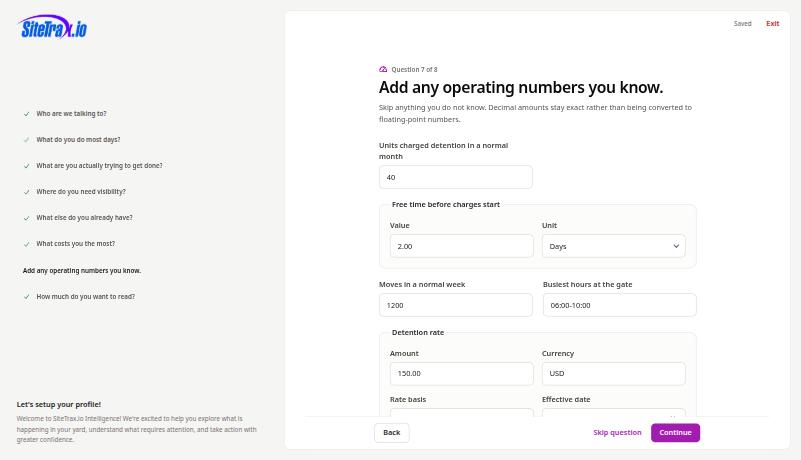
- Add any operating numbers you know. Optional, and skippable.
- How much do you want to read? Just the answer, answer plus why, or show the working. You can also store custom instructions for tone, focus and terminology.
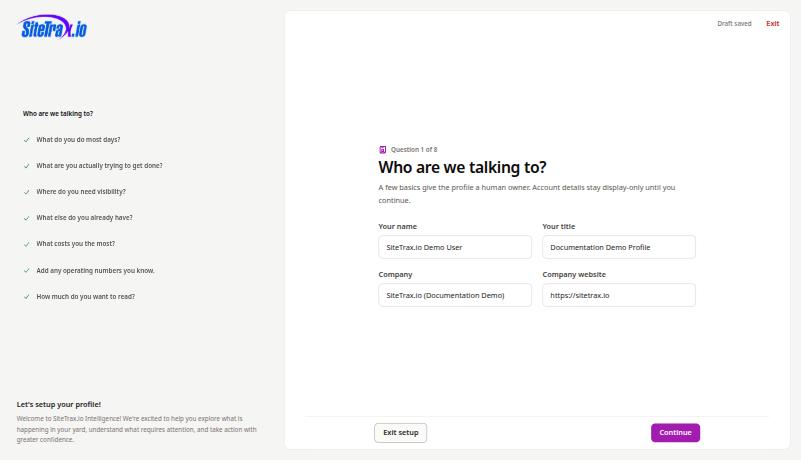
Progress is listed down the left, and you can jump back to any answered question. A draft-saved indicator confirms your work is held as you go.
3. Operating details
The operating details can depend on the costs you selected. For detention and per diem, the profile can record units charged in a normal month, free time, and a rate with its currency, billing basis and effective date. Only enter values you know and identify the charge they describe. Saving these inputs does not independently verify a tariff, invoice or liability.
4. Review and publish
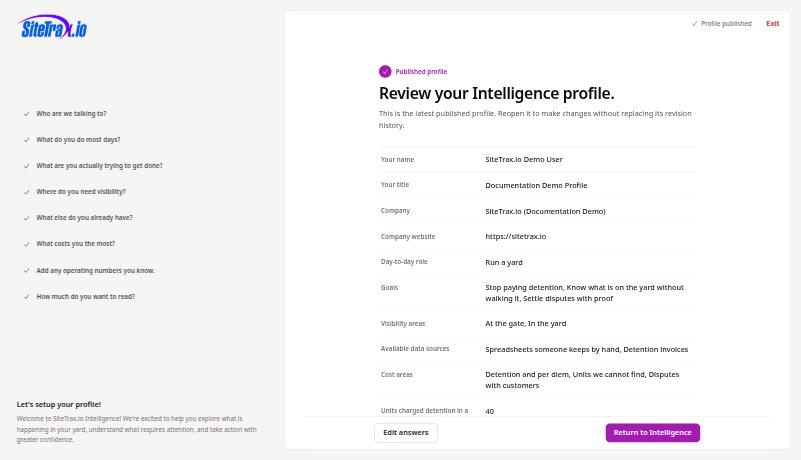
The review screen lists your saved draft answers before you publish, together with the timezone inferred from your browser. That timezone is saved as user context; it does not establish a facility timezone or silently change the time window of an operational query.
Select Publish profile. Publishing creates an immutable revision. You can reopen it later without replacing its history.
5. Your working brief
After publishing, SiteTrax.io shows the working brief generated from your answers. The brief, custom AI instructions and response-style preferences are saved with the revision, but are excluded from the public MCP profile response. A connected assistant can retrieve a compact selection of published facts and priorities when relevant. Ask for your preferred tone or level of explanation directly in the assistant.
Select Return to Intelligence to reach the hub.
Publishing a profile unlocks the normal personalized hub. It does not connect an assistant. Ordinary authorized MCP queries can work without a profile. Before starting assistant setup, verify your SiteTrax.io account email, then follow Account access and OAuth.
Only answers you explicitly confirmed are published. Values shown from your account for display are not silently promoted into stored facts. An unfinished draft or a skipped sample experience does not become published MCP profile context.
No comments to display
No comments to display