
Accessing SiteTrax.io Intelligence
Accessing SiteTrax.io Intelligence
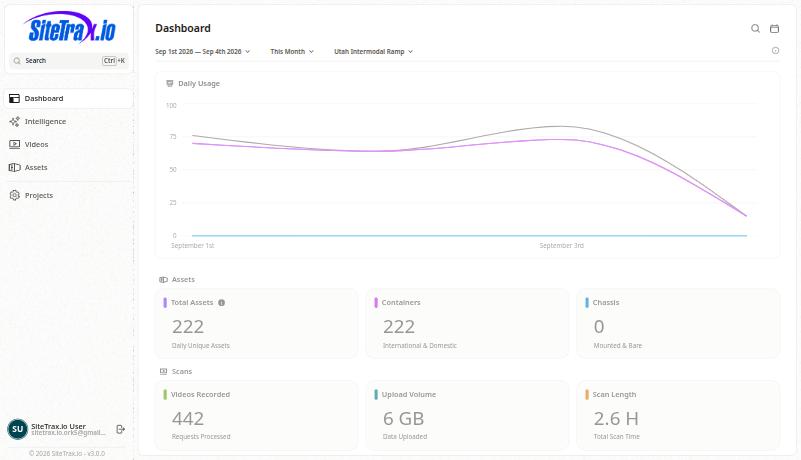
SiteTrax.io Intelligence is part of the SiteTrax.io application. There is no separate product to install and no second set of credentials.
Sign in
- Go to https://app.sitetrax.io.
- Sign in with your SiteTrax.io account.
- Select Intelligence in the left navigation.
If Intelligence is not in the navigation
The Intelligence item appears once a profile has been published for your account. Before that, SiteTrax.io prompts you to complete the profile interview, and the direct address app.sitetrax.io/dashboard/intelligence opens the interview at the step you last reached rather than a hub.
Complete the interview once and the hub becomes available. See First Login Experience.
The legacy service portal
Earlier SiteTrax.io documentation referred to a service portal at service.sitetrax.io. That experience has been retired. Everything it did is now in the application at app.sitetrax.io, alongside Intelligence.
Update any saved bookmarks, internal runbooks or onboarding material that still point at service.sitetrax.io.
Assistant access
YouFollow canyour alsoprovider’s askdedicated ChatGPTsetup orsection Claudefor toprovider-specific retrievesetup and support. Use your authorizedactive, data. Each assistant needs separate OAuth approval using your activeemail-verified SiteTrax.io accountaccount, withcomplete verifiedOAuth email.authorization Anand existing application session may avoid another password prompt, but it does not authorizeverify the assistantreturned byproject itself.list A published profile is optional for ordinary MCP access. Start directly with Connecting ChatGPT or Connecting Claude; you do not need to completeagainst the interview first. See Account Access and OAuth and AI Integrations.application.