
Connecting ChatGPT

SiteTrax.ioChatGPT publishes an app for ChatGPT. Connecting it lets youto ask operational questions in ChatGPT and get answers drawn fromabout the SiteTrax.io projects your account iscan permittedaccess. toSiteTrax.io see.returns authorized records and supported analytical results; ChatGPT uses those results in its response.
Before you start
- An active SiteTrax.io account with verified
email. Complete verificationemail andconfirmtheintendedrelevantaccountsharedin the application before starting. Share at least one project with that account for useful operational answers.projects. - A ChatGPT
account.accountOnwhereworkspaceyourplans,organizationanpermitsadministratorthecontrolsSiteTrax.iowhether apps may be added and how they are rolled out.integration. UseAacompletedesktopequipmentbrowseridentifier or known record for thedocumentedfirstsetup steps. Availability on other surfaces depends on the ChatGPT integration and current product support.check.
Connect from SiteTrax.io
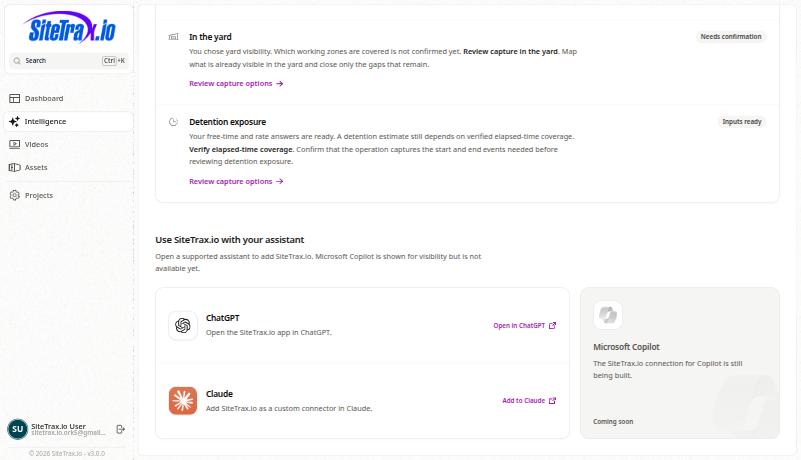
Open the published SiteTrax.io app in ChatGPT to start directly. A published Intelligence profile is optional for ordinary MCPdata access.queries. IfSign youin already useto the personalizedintended IntelligenceSiteTrax.io hub,account itsbefore ChatGPT card opensauthorizing the sameconnection.
Connect the published SiteTrax.io integration
Sign in atOpenapp.sitetrax.ioand openIntelligence.
Verify
Authenticationaccess, isthen completedask througha useful question
Using SiteTrax.io, list the projects I can access. Do not create or change anything.
Compare the list with Projects in app.sitetrax.io under the same account. Then ask:
Using SiteTrax.ioio,authorizationwhenscreen.wasNevertrailertype[complete identifier] last observed at [project]? Include the observation time, timezone, project and supporting record. Explain if the available evidence does not establish its current location.
Use a SiteTrax.iocustom passwordMCP intoconnection an app configuration field, and never paste access tokens into a prompt.
Configuringwhen your ownorganization connectionrequires it
OrganizationsThe that manage their own custom apps can point ChatGPT at the SiteTrax.io remote MCP endpoint. This developer-mode pathendpoint is separate from connecting the published listing above; its plan and workspace restrictions do not describe every published-app installation.
Endpoint: https://mcp.sitetrax.io/mcp
For a custom MCP connection, follow OpenAI's current developer-mode instructions. EnableUse developer mode where your accountOAuth and workspaceStreamable policy allow it, add the SiteTrax.io endpoint, review the discovered tools and complete OAuth authorization.HTTP. This custom setuproute is separate from installing the published SiteTrax.iolisting. listing.
Checkcurrent custom MCP guide describes adding a server from ChatGPT’s Plugins interface; workspace controls apply. Follow the connection
controls Ask something you can verify by hand, and name SiteTrax.ioavailable in the prompt.
Using SiteTrax.io, list the projects I have access to.
Compare the returned projects with Projects in the application under the same account. Matching results confirm read access for that request; the hub card or a visible app alone does not confirm authorization. An empty list can mean no projects are shared with the account. Ifyour account verification interrupted or expired the connection, finish verification and start again from ChatGPT.
What ChatGPT can reach
Only what your SiteTrax.io account can reach. Connecting an app does not widen SiteTrax.io permissions. See Using MCP with SiteTrax.io for the capability groups, and the SiteTrax.iocurrent MCPvendor Serverguide referencerather forthan an old developer-mode screenshot.
Understand the fullaction technical contract.boundary
IfRead answerspermission arecovers generic,permitted checkqueries theand authorizednotification account,history. sharedCreating projects,or whether that account hascancelling a published profile, and whether ChatGPT actually retrieved it. The public profile tool returns selected facts and priorities; it does not supply your saved working brief or response-style instructions. Reconnecting only helps when the account or authorization is wrong. See Troubleshooting Connections.
Reading operational data, published profile context, notification lists and delivery history uses sitetrax:read. Creating ansupported alert or digest, or cancelling one,digest also requires sitetrax:notifications:write. ChatGPTand mayconfirmation request that additional approval when you ask forof the action,proposed change. That permission does not grant general edits to operational records or duringarbitrary initialactions setup.in Approveother only the access your workflow needs.systems. See Account Access and OAuth and Alerts and Scheduled Digests.
SourcesIf setup or an answer fails
An
absent integration can be a workspace-policy issue. An empty project list can be an account-sharing issue. An answer without SiteTrax.io evidence can mean the assistant did not call the tools. If permission is insufficient, check the actual granted scopes; repeating the same read-only connection does not add write access. UseReturned records and MCPsummaries appsare sent to OpenAI for the response. Follow your organization’s provider and data-handling policies. For disconnecting and server-side access termination, see Account Access and OAuth.
Vendor setup reference checked 7 October 2026. Customer-account installation was not exercised in ChatGPT,this OpenAIdocumentation Help Center