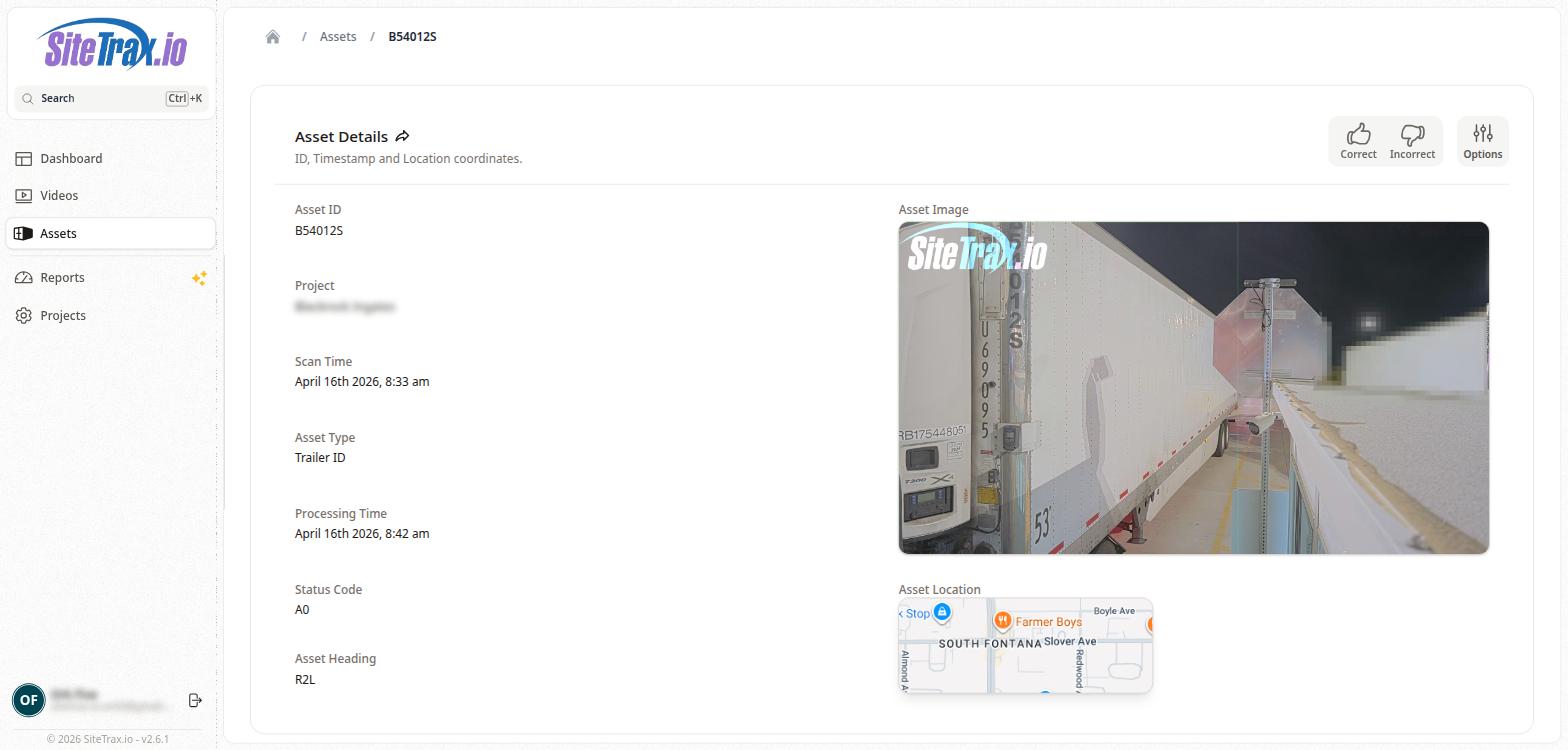
Asset Detail Page
Clicking on an asset card from the Assets Gallery opens the Asset Detail page. The breadcrumb navigation shows the path: Home > Assets > [Asset ID].
The Asset Details section displays comprehensive information about the detected asset. The left column includes the Asset ID (the container or chassis identification number), Project (the associated project name), Scan Time (the date and time the asset was captured), Asset Type (the classification of the identification), Processing Time (when the backend completed analysis), Status Code (e.g., A0 for a successful read), and Asset Heading (the direction the asset was facing relative to the camera, e.g., R2L for right-to-left).
The right column displays the Asset Image, which is a cropped photograph of the detected asset extracted from the video frame, and the Asset Location, which shows the GPS coordinates of the capture plotted on an embedded map.