
Google: Sheets, Gemini Enterprise and Custom Agents
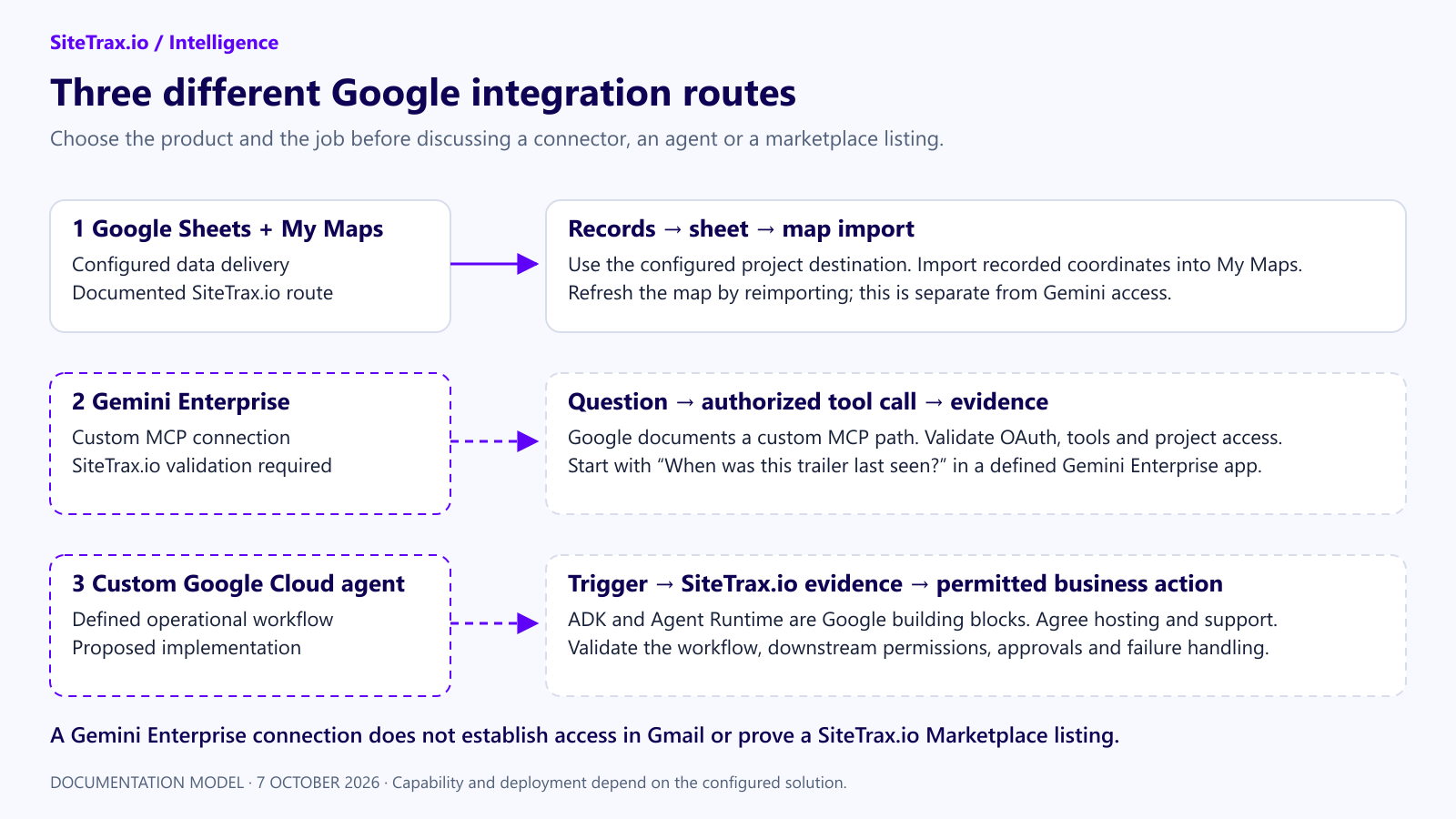
Choose the Google product that matches the job. Sending records to Google Sheets, asking Gemini Enterprise a question and deploying a custom agent on Google Cloud require different setup.
| Route | Use it for | SiteTrax.io status and next step |
|---|---|---|
| Google Sheets and My Maps | Receive operational records in a configured sheet; map available coordinates. | Documented data-delivery route. Confirm the project destination. My Maps requires reimport to reflect changes. |
| Gemini Enterprise custom MCP connection | Let an enterprise assistant query authorized SiteTrax.io information. | Google documents this capability. SiteTrax.io end-to-end compatibility has not been validated in this guide; coordinate a pilot. |
| Custom Google Cloud agent | Implement a defined business workflow using SiteTrax.io evidence and other authorized tools. | Proposed implementation route. Architecture, hosting, billing and support must be scoped. |
| Gemini in Gmail or the Gemini consumer app | Use a particular Google user interface. | Do not assume a Gemini Enterprise MCP configuration appears in these products. Confirm that exact surface before committing to a workflow. |
1. Use data in Google Sheets and My Maps
Confirm the Google Sheets destination under your SiteTrax.io project integrations. Once records arrive, use the existing My Maps guide to import coordinates. Map markers describe recorded observations. Reimport the sheet to update the map; a sheet update alone does not refresh it.
2. Evaluate Gemini Enterprise access
Google’s custom MCP data-store guide documents Streamable HTTP and OAuth setup. That establishes a Google integration path, not a tested SiteTrax.io connection.
For a pilot, have your Google administrator and SiteTrax.io confirm:
- The Gemini Enterprise app, permitted users and required organization policies.
- The endpoint
https://mcp.sitetrax.io/mcp, OAuth registration and redirect, requested scopes and allowed domains. - Per-user project access, tool discovery and a read-only test before any notification write permission.
Using SiteTrax.io, list the projects I can access. Then find the latest observation of the equipment identifier I provide, including its time, project and supporting record.
Compare the answer with the same account in app.sitetrax.io. Test an inaccessible project and a missing identifier as well as a successful lookup. Publish a customer setup guide only after the actual connection, permissions and supported tools pass validation.
3. Build a custom agent on Google Cloud
Google’s Agent Development Kit supports MCP tools, and its Agent Runtime guide describes hosting ADK agents. A proposed SiteTrax.io implementation uses an agent to call permitted SiteTrax.io tools, apply a defined business process and request an approved downstream action. This does not require describing Gemini as the model that reads asset identifiers from video.
Scope one workflow first. Agree where it runs, who pays for the runtime, how each user or service is authorized, which data reaches Google, what actions require approval and who handles failures. Google Cloud Marketplace procurement is a separate workstream from validating this connection; this guide does not claim a SiteTrax.io listing or Google endorsement.
Start with a verifiable lookup
Contact SiteTrax.io with the Google product you use, one project and one question you need answered. Establish a reliable lookup before expanding to workflows that change business systems.
Provider documentation checked 7 October 2026. SiteTrax.io Google MCP setup remains unvalidated in this review.