
Connecting Claude

SiteTrax.io connects to Claude as a custom connector over the remote MCP endpoint. Once it is added, you can ask operational questions in Claude and get answers scoped to your SiteTrax.io projects.
Before you start
Connect from SiteTrax.io
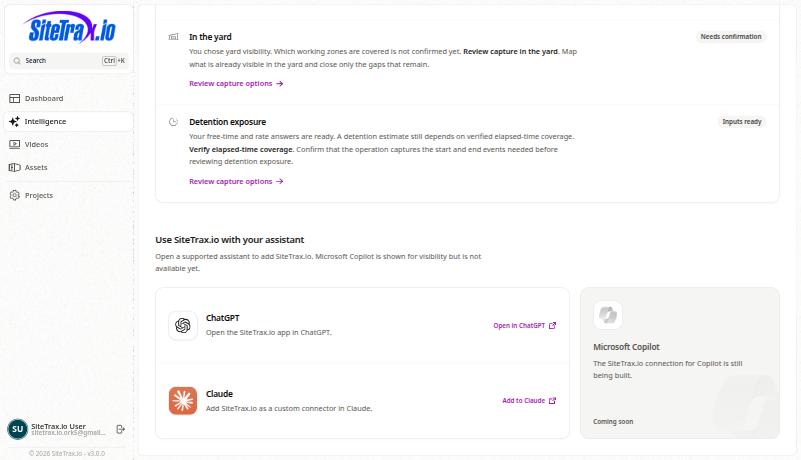
You can open the SiteTrax.io connector setup in Claude directly, then confirm the details and connect. A published Intelligence profile is optional for ordinary MCP access. If you already use the personalized Intelligence hub, its Claude card opens the same setup:
Adding it manually
If you would rather add it by hand, or the deep link is blocked by your browser:
https://mcp.sitetrax.io/mcp
Leave the advanced OAuth client fields empty unless SiteTrax.io has given you values for them.
Add the connector, then select Connect and complete the SiteTrax.io sign-in.
Turn it on in a conversation
Adding a connector makes it available; it is enabled per conversation. Use the plus button in the message box, choose connectors, and switch SiteTrax.io on for that conversation.
Check the connection
Using SiteTrax.io, list the projects I have access to.
Compare the returned projects with Projects matching what you see in the application confirmunder the connectionsame account. Matching results confirm read access for that request; adding a connector alone does not complete OAuth. An empty list can mean no projects are shared with the account. If account verification interrupted or expired the connection, finish verification and itsstart scope.again from Claude.
Permissions
Standard operationalqueries, queriesselected published profile context, notification lists and delivery history use read access. NotificationCreating an alert or digest, or cancelling one, needs read access plus sitetrax:notifications:write. The client must request that extra permission and digestsupport capabilitiesit requirein aits separateregistration; writereconnecting scopewith the same read-only request does not add it. It may be requested initially or later. See Account Access and shouldOAuth, beAlerts approvedand onlyScheduled whenDigests yourand workflow needs them. Thethe SiteTrax.io MCP Server referencereference.
Sign in to the connectorAuthorize with the same SiteTrax.io account that publishedholds your Intelligenceproject access. If you want published profile context, use the account that published it and ask Claude to retrieve that context. Another account may have different projects and its own profile. ASelected differentpublished account authenticates successfully but carries different project accessfacts and nopriorities are available to the assistant; the saved working brief, custom instructions and response-style preferences are not returned by the public profile context.tool.