
Connecting Claude

SiteTrax.io connects to Claude as a custom connector over the remote MCP endpoint. Once it is added, you can ask operational questions in Claude and get answers scoped to your SiteTrax.io projects.
Before you start
- A SiteTrax.io account with at least one shared project.
- A Claude account on a plan that supports custom connectors. Anthropic documents these as Pro, Max, Team and Enterprise.
- On Team and Enterprise, only Owners can add a custom connector. Everyone else connects to one an Owner has already added.
Connect from SiteTrax.io
- Sign in at app.sitetrax.io and open Intelligence.
- Scroll to Use SiteTrax.io with your assistant.
- On the Claude card, select Add to Claude. It opens Claude connector settings in a new tab with the SiteTrax.io connector name and URL already filled in.
- Confirm the details and add the connector.
- Select Connect, sign in to SiteTrax.io when prompted, review the requested permissions and authorize.
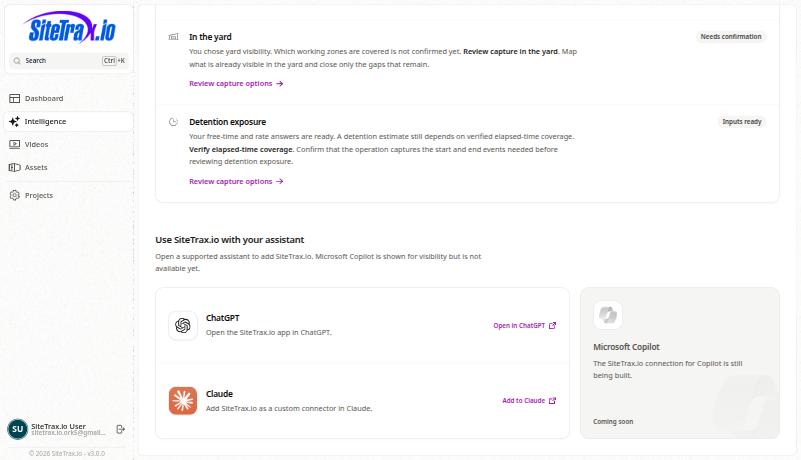
Adding it manually
If you would rather add it by hand, or the deep link is blocked by your browser:
- Open Claude settings and go to Connectors.
- Select Add custom connector.
- Enter the SiteTrax.io remote MCP server URL:
https://mcp.sitetrax.io/mcp - Leave the advanced OAuth client fields empty unless SiteTrax.io has given you values for them.
- Add the connector, then select Connect and complete the SiteTrax.io sign-in.
Turn it on in a conversation
Adding a connector makes it available; it is enabled per conversation. Use the plus button in the message box, choose connectors, and switch SiteTrax.io on for that conversation.
Check the connection
Using SiteTrax.io, list the projects I have access to.
Projects matching what you see in the application confirm the connection and its scope.
Permissions
Standard operational queries use read access. Notification and digest capabilities require a separate write scope and should be approved only when your workflow needs them. The SiteTrax.io MCP Server reference covers scopes in full.
Sign in to the connector with the same SiteTrax.io account that published your Intelligence profile. A different account authenticates successfully but carries different project access and no profile context.