**Retired page.** This documents the legacy SiteTrax.io service portal, which has been replaced by **SiteTrax.io Intelligence** at [app.sitetrax.io](https://app.sitetrax.io). It is kept for reference only and is no longer maintained. For current guidance, see the [SiteTrax.io Intelligence](/shelves/sitetraxio-intelligence) shelf.
The SiteTrax.io Service Portal is a web application available at [https://service.sitetrax.io](https://service.sitetrax.io) that serves as the central hub for all SiteTrax.io capture and asset tracking activity. The portal is where users go to review processed video scans, verify detected assets, monitor project performance, and manage integrations with external systems. The Service Portal is designed for operations managers, yard supervisors, logistics coordinators, and anyone involved in tracking intermodal containers, chassis, and other supply chain assets. After videos are captured using any SiteTrax.io Capture Solution - such as SiteTrax.io Mobile, Gate, Snap, or Drive - the processed results appear in the Service Portal for review and management. Key capabilities of the Service Portal include real-time dashboards with usage and asset statistics, a searchable video library with playback and metadata, an asset gallery with image verification and location data, project management with user access controls and integrations, and a powerful global search for quickly locating any asset by ID. 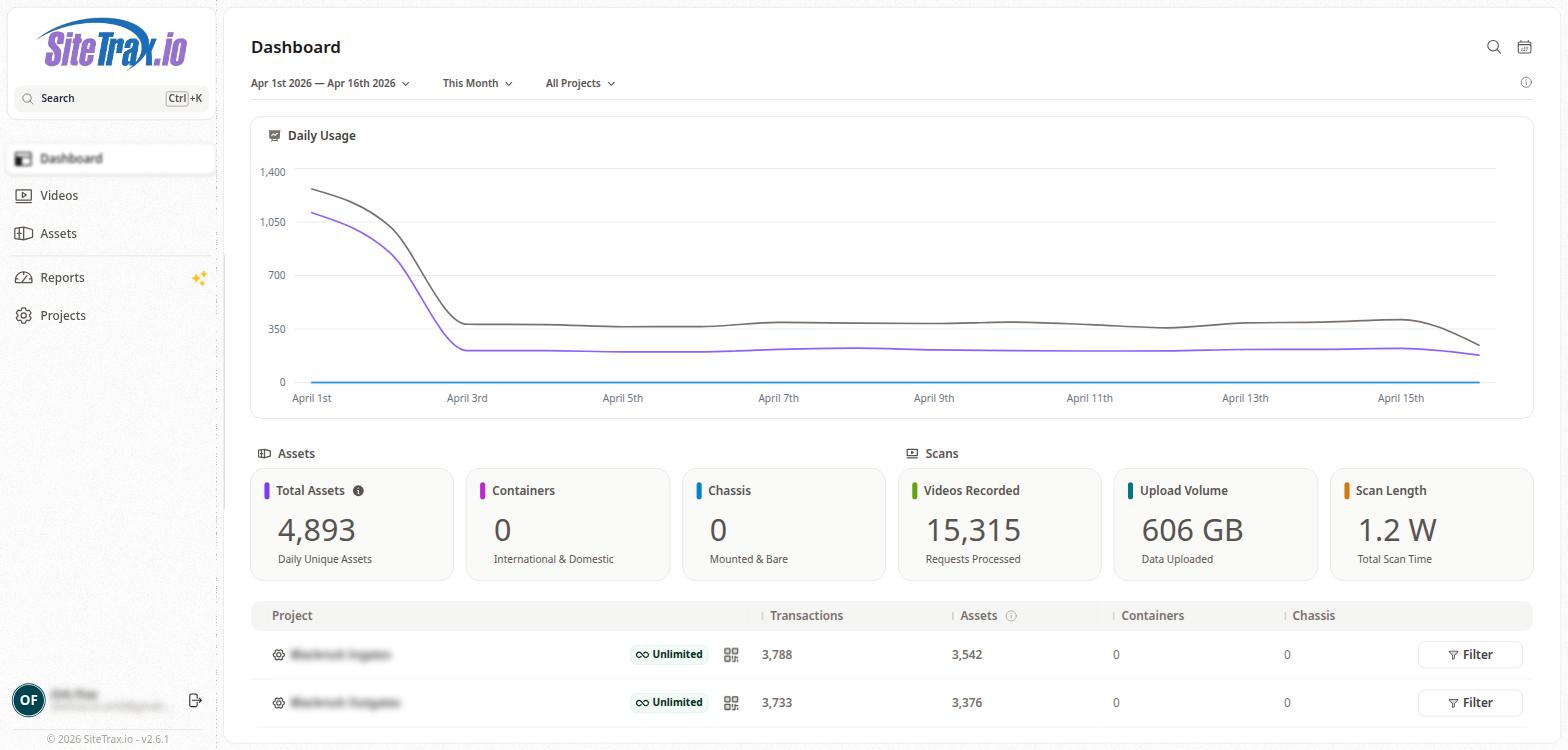 # Accessing the Service Portal**Retired page.** This documents the legacy SiteTrax.io service portal, which has been replaced by **SiteTrax.io Intelligence** at [app.sitetrax.io](https://app.sitetrax.io). It is kept for reference only and is no longer maintained. For current guidance, see the [SiteTrax.io Intelligence](/shelves/sitetraxio-intelligence) shelf.
The SiteTrax.io Service Portal is accessible at [https://service.sitetrax.io](https://service.sitetrax.io) from any modern web browser. Users must have a valid SiteTrax.io account with appropriate project access to log in. After authentication, users are directed to the Dashboard, which provides a summary view of all activity across their assigned projects. The portal displays the current logged-in user's name and email in the lower-left corner of the sidebar, along with a logout option. The current application version is displayed at the bottom of the sidebar (e.g., v2.6.3).  # Navigation and Layout**Retired page.** This documents the legacy SiteTrax.io service portal, which has been replaced by **SiteTrax.io Intelligence** at [app.sitetrax.io](https://app.sitetrax.io). It is kept for reference only and is no longer maintained. For current guidance, see the [SiteTrax.io Intelligence](/shelves/sitetraxio-intelligence) shelf.
The Service Portal uses a sidebar-based navigation layout. The left sidebar contains the SiteTrax.io logo at the top, a global search bar with keyboard shortcut support (Ctrl+K), and four primary navigation links: Dashboard, Videos, Assets, and Projects. The main content area to the right of the sidebar displays the active page content. Most pages share a common toolbar at the top that includes a date range selector, a time period filter, and a project filter. The date range selector allows users to define a custom start and end date, while the time period dropdown provides quick presets such as This Month, Previous Month, This Week, Last 30 Days, and Last 7 Days. The project filter defaults to "All Projects" but can be scoped to a specific project. A search icon and calendar icon are available in the top-right corner of the main content area for quick access to search and date selection.  # Global Search**Retired page.** This documents the legacy SiteTrax.io service portal, which has been replaced by **SiteTrax.io Intelligence** at [app.sitetrax.io](https://app.sitetrax.io). It is kept for reference only and is no longer maintained. For current guidance, see the [SiteTrax.io Intelligence](/shelves/sitetraxio-intelligence) shelf.
The SiteTrax.io Service Portal includes a powerful global search feature accessible from the sidebar search bar or by pressing Ctrl+K from any page. When activated, a search overlay appears at the top of the screen with a text input field. As you type, the search returns real-time results from across your assets. Results are displayed in a categorized list showing the number of matching assets. Each result row displays the Asset ID (such as a container number), the Asset Type (e.g., International Intermodal Vertical ID), and the date the asset was processed. Clicking on a result navigates directly to that asset's detail page. This search is particularly useful for quickly locating a specific container or chassis by its ID number without having to manually browse through the Assets page. 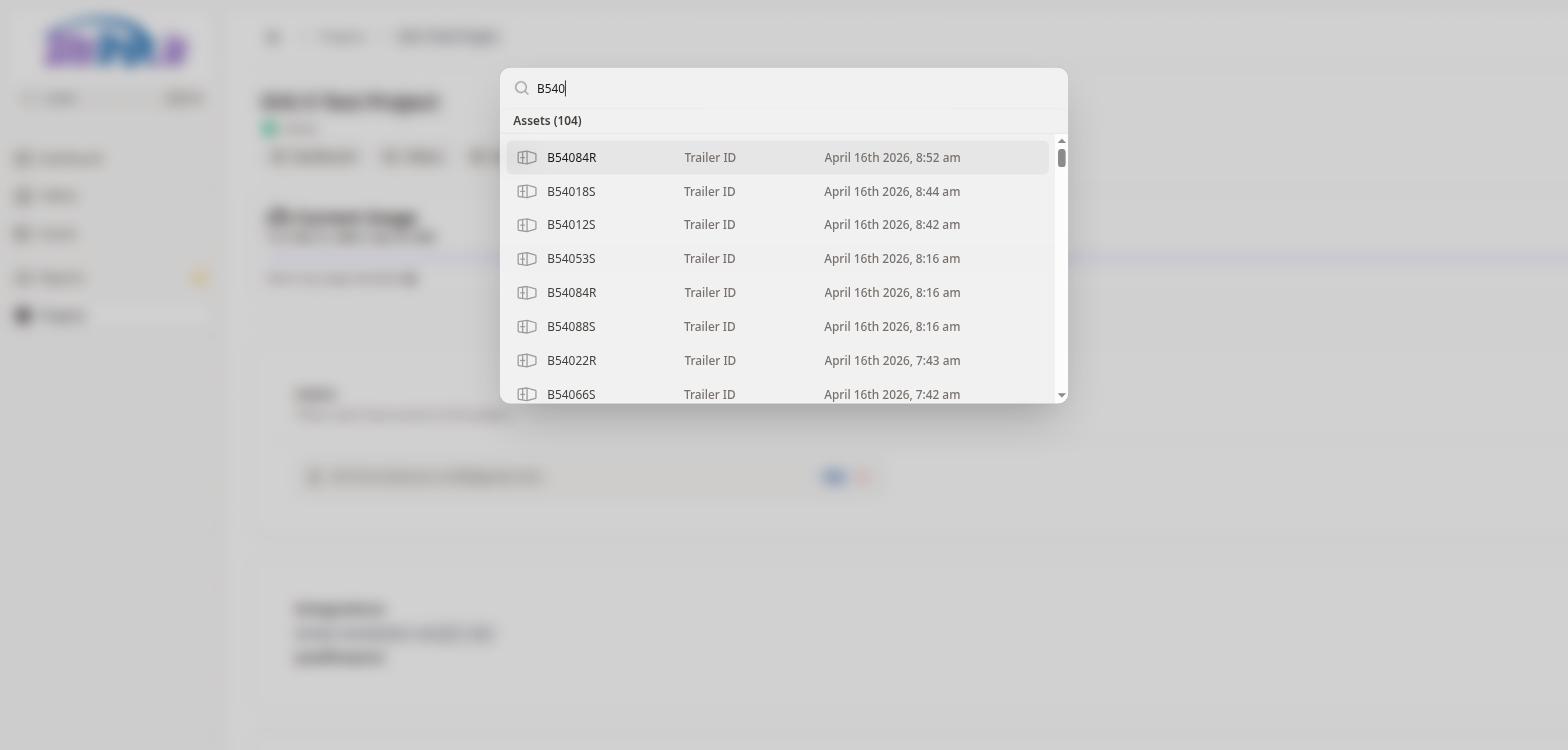 # Dashboard A complete guide to the SiteTrax.io Service Portal Dashboard, including how to read daily usage charts, interpret asset and scan summaries, and review the projects overview. # Dashboard Overview**Retired page.** This documents the legacy SiteTrax.io service portal, which has been replaced by **SiteTrax.io Intelligence** at [app.sitetrax.io](https://app.sitetrax.io). It is kept for reference only and is no longer maintained. For current guidance, see the [SiteTrax.io Intelligence](/shelves/sitetraxio-intelligence) shelf.
The Dashboard is the default landing page of the SiteTrax.io Service Portal and provides a high-level summary of all capture and asset tracking activity. It is organized into three main sections: Daily Usage, Assets, and Scans, followed by a Projects summary table at the bottom. All dashboard data is scoped by the filters at the top of the page. Users can adjust the date range, time period, and project filter to focus on specific windows of activity. The Dashboard automatically updates to reflect the selected filters.  # Daily Usage Chart**Retired page.** This documents the legacy SiteTrax.io service portal, which has been replaced by **SiteTrax.io Intelligence** at [app.sitetrax.io](https://app.sitetrax.io). It is kept for reference only and is no longer maintained. For current guidance, see the [SiteTrax.io Intelligence](/shelves/sitetraxio-intelligence) shelf.
The Daily Usage section displays a line chart that visualizes activity over the selected date range. The horizontal axis represents calendar days, and the vertical axis represents the count of activity (such as scans or assets processed). The chart provides a quick visual indicator of operational volume trends, helping users identify peak activity days or periods of reduced scanning. 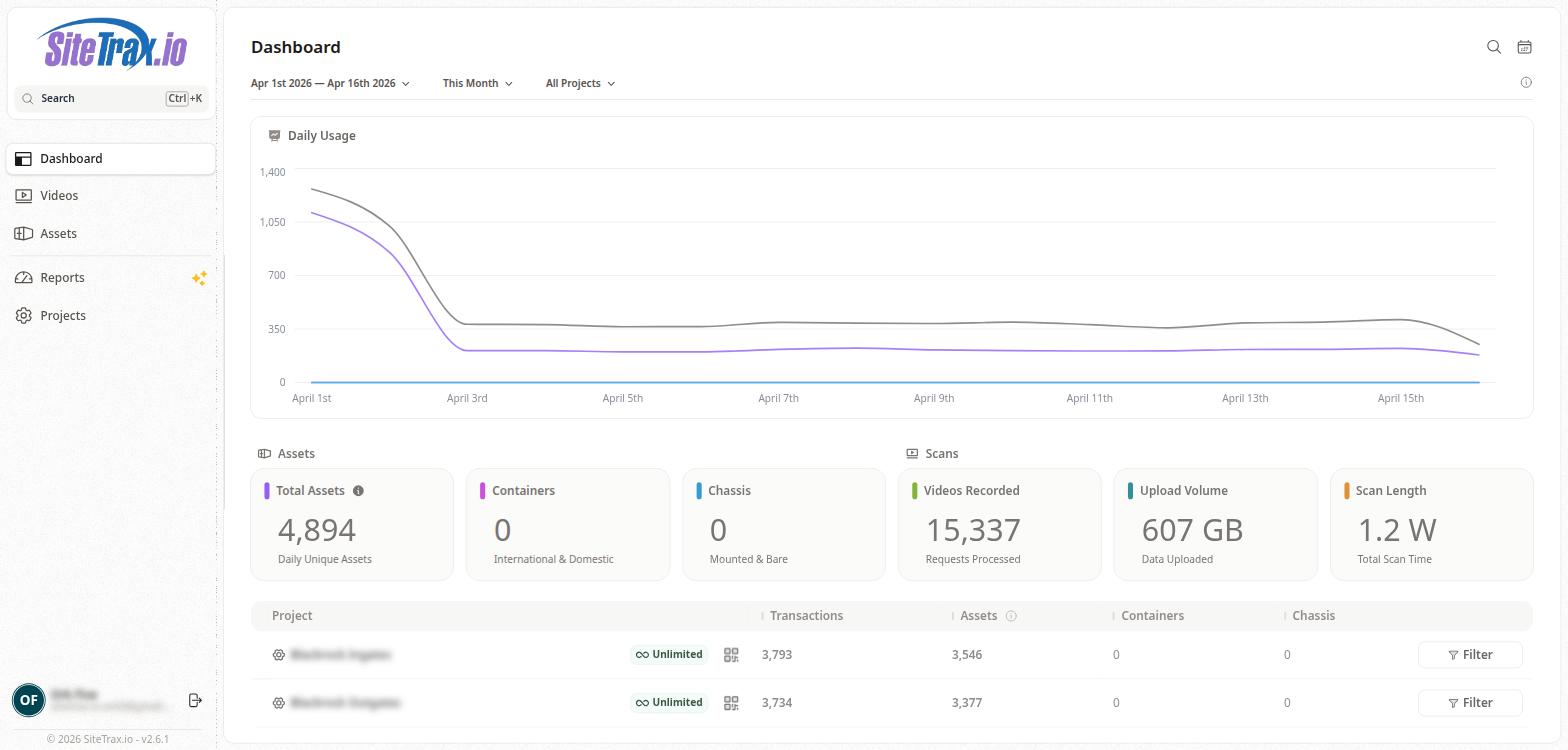 # Assets Summary**Retired page.** This documents the legacy SiteTrax.io service portal, which has been replaced by **SiteTrax.io Intelligence** at [app.sitetrax.io](https://app.sitetrax.io). It is kept for reference only and is no longer maintained. For current guidance, see the [SiteTrax.io Intelligence](/shelves/sitetraxio-intelligence) shelf.
The Assets section of the Dashboard contains three summary cards that provide aggregate counts for the selected time period. The first card, **Total Assets**, displays the count of daily unique assets that have been identified across all scans. This number represents distinct assets detected, not total detections, which may include multiple sightings of the same asset. The second card, **Containers**, shows the number of intermodal containers (both International and Domestic) identified during the selected period. This includes containers with BIC (Bureau International des Containers) codes detected from vertical or horizontal markings. The third card, **Chassis**, shows the count of chassis identified during the selected period, including both mounted and bare chassis types. This is useful for tracking trailer and chassis inventory alongside container data.  # Scans Summary**Retired page.** This documents the legacy SiteTrax.io service portal, which has been replaced by **SiteTrax.io Intelligence** at [app.sitetrax.io](https://app.sitetrax.io). It is kept for reference only and is no longer maintained. For current guidance, see the [SiteTrax.io Intelligence](/shelves/sitetraxio-intelligence) shelf.
The Scans section of the Dashboard displays three summary cards related to video capture activity. The first card, **Videos Recorded**, shows the total number of video requests that have been processed by the SiteTrax.io backend during the selected time period. This represents the volume of capture activity from all connected cameras and devices. The second card, **Upload Volume**, displays the total amount of data uploaded to the SiteTrax.io platform during the selected period, measured in gigabytes (GB). This metric is useful for monitoring bandwidth usage and storage consumption. The third card, **Scan Length**, shows the cumulative duration of all video scans processed during the selected period. This gives a sense of the total operational time spent capturing assets.  # Projects Summary Table**Retired page.** This documents the legacy SiteTrax.io service portal, which has been replaced by **SiteTrax.io Intelligence** at [app.sitetrax.io](https://app.sitetrax.io). It is kept for reference only and is no longer maintained. For current guidance, see the [SiteTrax.io Intelligence](/shelves/sitetraxio-intelligence) shelf.
At the bottom of the Dashboard is a summary table listing all projects associated with the current user. The table includes the following columns: **Project** (the name of the project), **Transactions** (the plan tier, such as "Unlimited"), **Assets** (the number of unique assets detected), **Containers** (the number of containers identified), and **Chassis** (the number of chassis identified). Each project row includes a QR code icon that can be used to generate a QR code for the project, and a Filter button that allows users to quickly filter the Dashboard to show only data from that specific project. The table also displays aggregate totals across all projects at the bottom.  # Videos Documentation for the Videos section of the SiteTrax.io Service Portal, covering how to browse, search, play, and review video recordings captured by SiteTrax.io devices. # Videos List**Retired page.** This documents the legacy SiteTrax.io service portal, which has been replaced by **SiteTrax.io Intelligence** at [app.sitetrax.io](https://app.sitetrax.io). It is kept for reference only and is no longer maintained. For current guidance, see the [SiteTrax.io Intelligence](/shelves/sitetraxio-intelligence) shelf.
The Videos page displays a paginated table of all video scans uploaded to the SiteTrax.io platform within the selected date range and project filter. The table includes a thumbnail preview, Video Name, Assets count (the number of assets detected in that video), Project name, Added date and time, Length (video duration), and Size (file size). Videos are listed in reverse chronological order by default, with the most recently added videos appearing first. The Added column can be sorted in ascending or descending order. Pagination controls at the bottom of the table allow navigation between pages, with each page displaying up to 50 results. The total result count is displayed (e.g., "Showing 1 to 50 of 906 results"). Each video row includes a play button overlay on the thumbnail for quick inline playback, and the video name is a clickable link that navigates to the full video detail page. The project name is also a link that navigates to the corresponding project page. 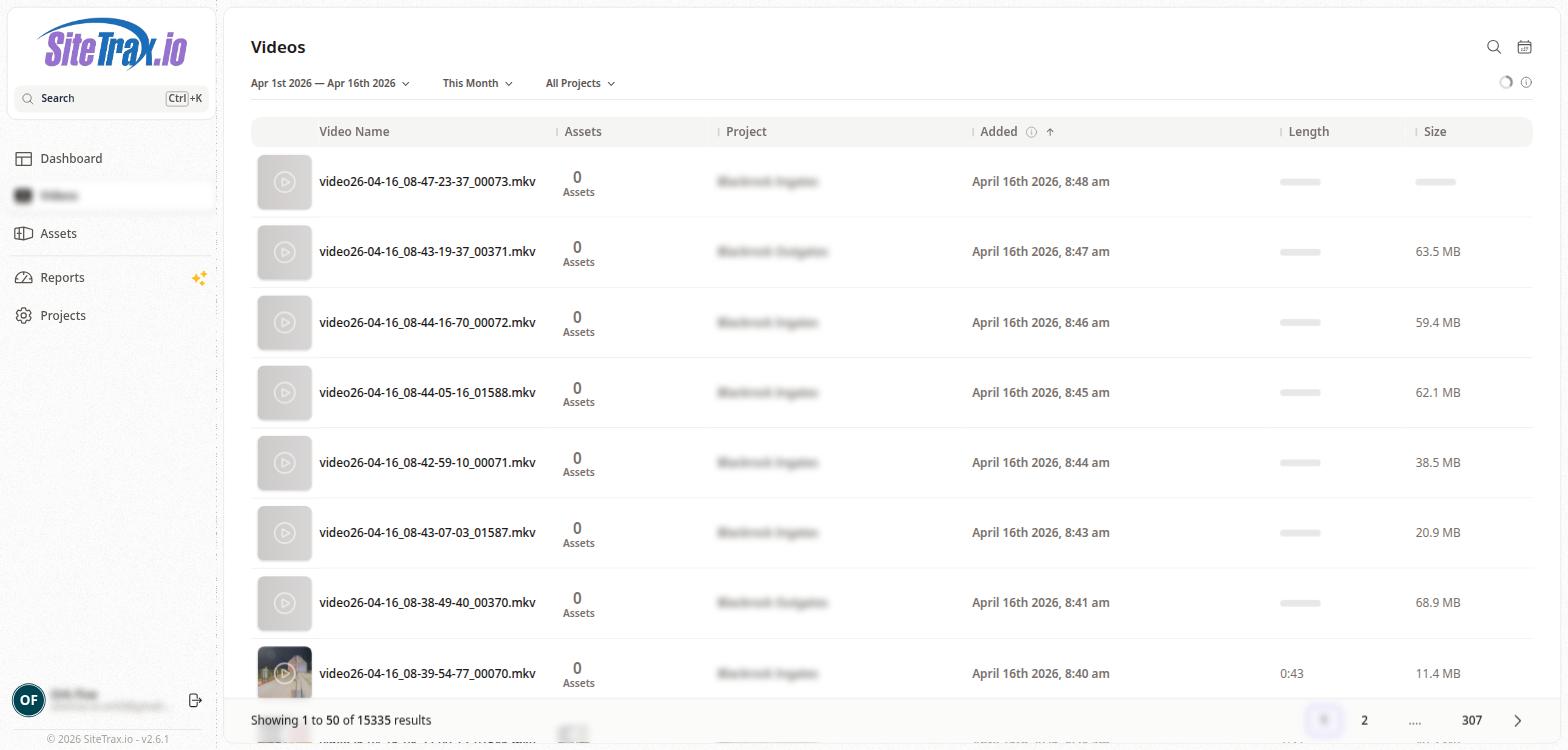 # Video Detail Page**Retired page.** This documents the legacy SiteTrax.io service portal, which has been replaced by **SiteTrax.io Intelligence** at [app.sitetrax.io](https://app.sitetrax.io). It is kept for reference only and is no longer maintained. For current guidance, see the [SiteTrax.io Intelligence](/shelves/sitetraxio-intelligence) shelf.
Clicking on a video name from the Videos list opens the Video Detail page. This page is divided into two main sections: Video Metadata and Found Assets. The breadcrumb navigation at the top of the page shows the path: Home > Videos > \[Video Name\]. The Video Metadata section displays detailed technical information about the video file, including the Video Name (the original filename), Time Added (the timestamp when the video was received by the platform), Project (the associated project name), Resolution (e.g., 1920 x 1080), Frame Rate (e.g., 15 fps), Length (the video duration in seconds), Time Taken (the wall-clock processing time in seconds), and Size (the file size in MB). Two action buttons are available in the top-right corner of the metadata section: **Download** (to save the original video file) and **Play** (to view the video in the browser). 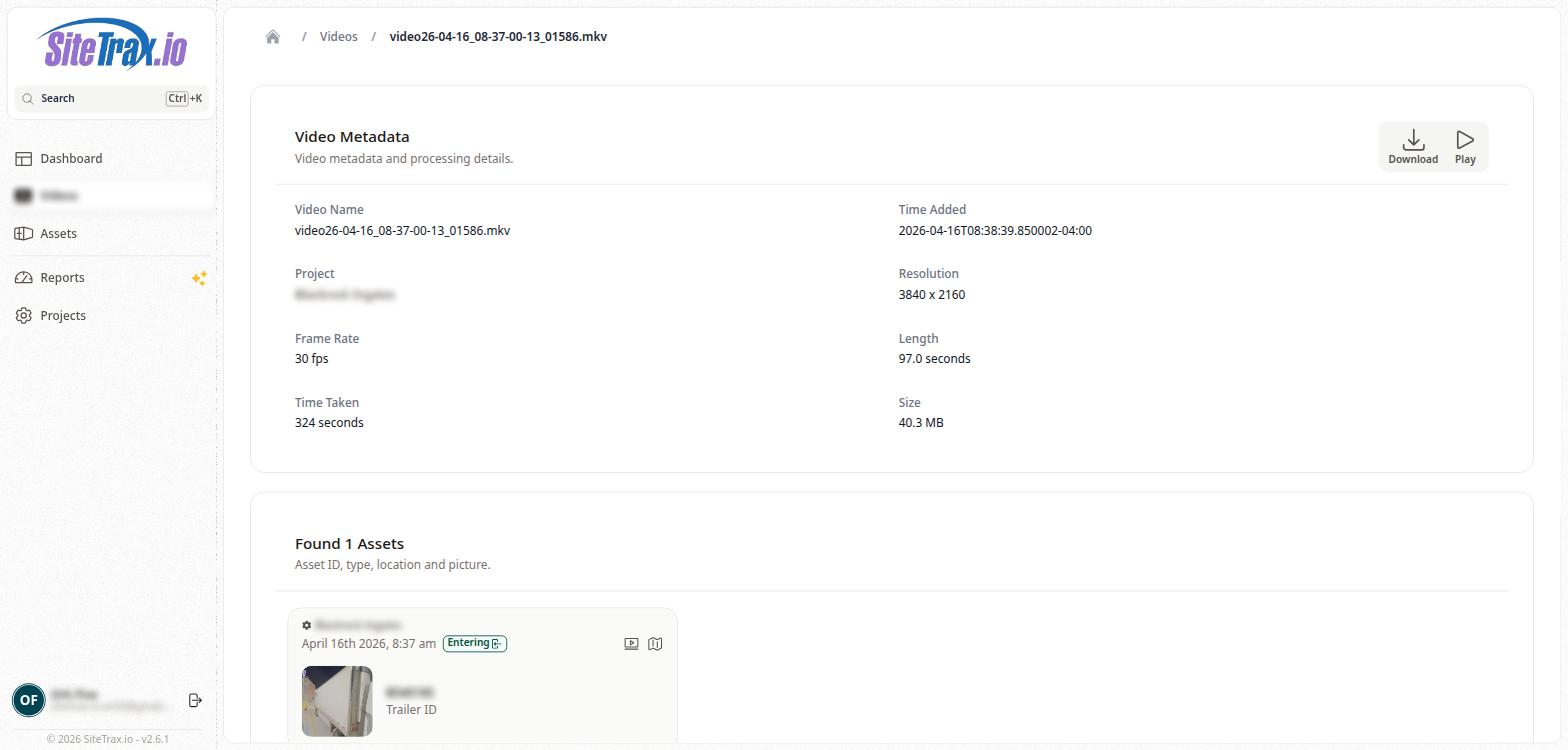 # Found Assets in Videos**Retired page.** This documents the legacy SiteTrax.io service portal, which has been replaced by **SiteTrax.io Intelligence** at [app.sitetrax.io](https://app.sitetrax.io). It is kept for reference only and is no longer maintained. For current guidance, see the [SiteTrax.io Intelligence](/shelves/sitetraxio-intelligence) shelf.
Below the Video Metadata section on the Video Detail page is the Found Assets section. This section displays all assets that were automatically detected and identified by the SiteTrax.io backend during video processing. The section header shows the count of assets found (e.g., "Found 1 Assets") along with a subtitle: "Asset ID, type, location and picture." Each detected asset is displayed as a card showing the Project name, the date and time of detection, a status tag (such as "Exiting" with a directional arrow icon), a thumbnail image of the detected asset, the Asset ID (e.g., a container or chassis number), and the Asset Type (e.g., International Intermodal Vertical ID). Clicking on an asset card navigates to the full Asset Detail page. If no assets were detected in a video, this section will show "Found 0 Assets."  # Video Naming Convention**Retired page.** This documents the legacy SiteTrax.io service portal, which has been replaced by **SiteTrax.io Intelligence** at [app.sitetrax.io](https://app.sitetrax.io). It is kept for reference only and is no longer maintained. For current guidance, see the [SiteTrax.io Intelligence](/shelves/sitetraxio-intelligence) shelf.
SiteTrax.io video files follow a structured naming convention that encodes information about the capture session. A typical filename looks like: `s000_26-04-07_18-00-39-09_00059.mp4`. The first segment (e.g., s000, s001, s002) represents the segment number within a capture session. When a continuous scan produces multiple video segments, each is numbered sequentially. The date portion (e.g., 26-04-07) encodes the capture date in YY-MM-DD format. The time portion (e.g., 18-00-39-09) encodes the capture time. The session number (e.g., 00059) is a sequential identifier for the capture session. Some videos may use a different naming format without the segment prefix (e.g., 26-04-07\_17-50-42-93\_00084.mp4), which typically represents a single capture from a stationary or gate-mounted camera.  # Assets A guide to the Assets section of the SiteTrax.io Service Portal, including how to browse detected assets, review asset details, and understand asset types and statuses. # Assets Gallery**Retired page.** This documents the legacy SiteTrax.io service portal, which has been replaced by **SiteTrax.io Intelligence** at [app.sitetrax.io](https://app.sitetrax.io). It is kept for reference only and is no longer maintained. For current guidance, see the [SiteTrax.io Intelligence](/shelves/sitetraxio-intelligence) shelf.
The Assets page displays all detected assets in a card-based grid layout. Each asset card shows a thumbnail image of the captured asset, the Project name, the date and time of detection, a status tag (e.g., "Exiting" with a directional arrow), the Asset ID (the container or chassis number), and the Asset Type (e.g., International Intermodal Vertical ID, International Intermodal Horizontal ID). Each card also includes icon buttons for viewing the associated video clip and for deleting the asset record. Assets are displayed in reverse chronological order, with the most recently detected assets appearing first. Pagination controls at the bottom allow users to navigate through all results. A "Filter Exceptions" toggle is available in the toolbar, allowing users to quickly filter the view to show only assets that may require manual review or have been flagged as exceptions. The standard date range, time period, and project filters are also available at the top of the page. 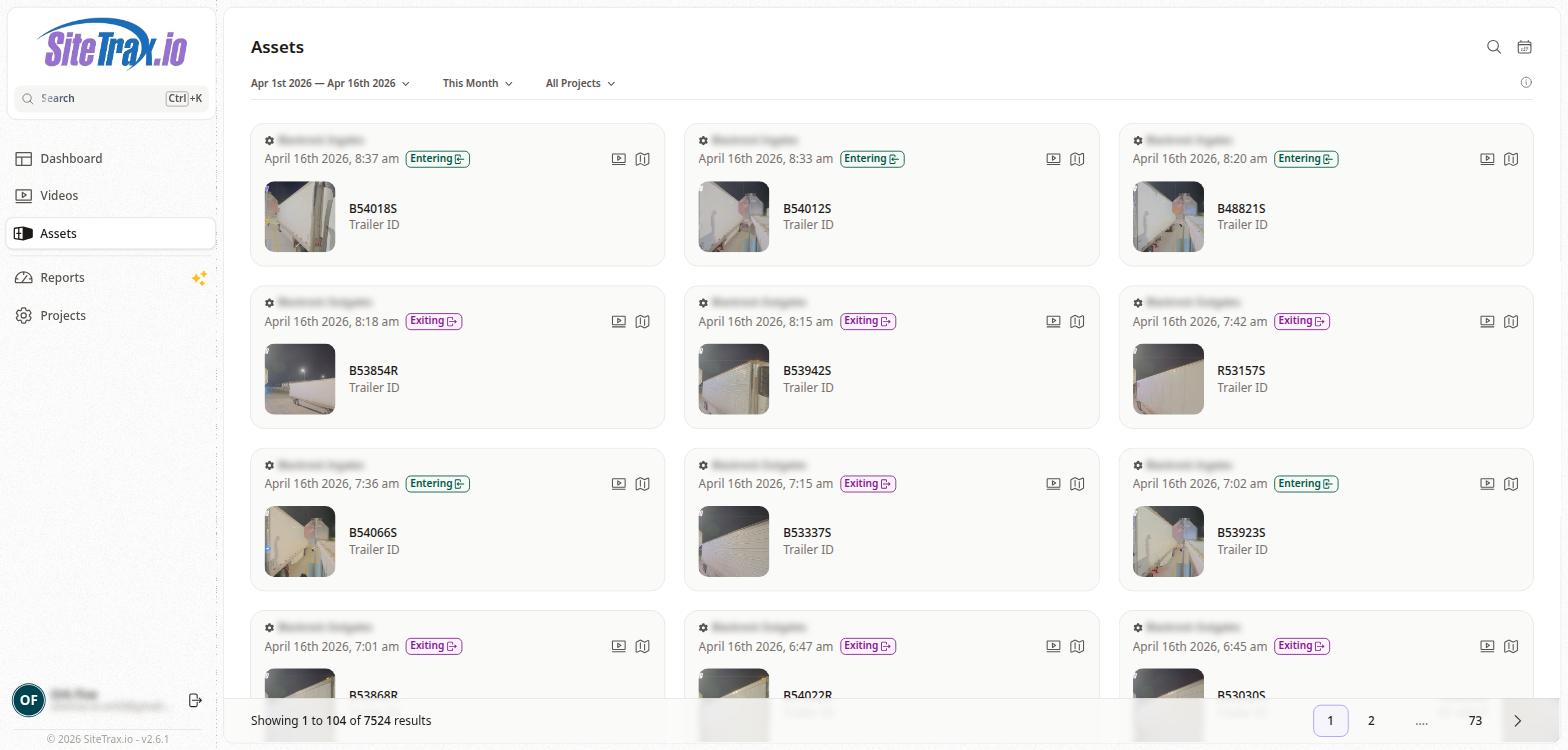 # Asset Detail Page**Retired page.** This documents the legacy SiteTrax.io service portal, which has been replaced by **SiteTrax.io Intelligence** at [app.sitetrax.io](https://app.sitetrax.io). It is kept for reference only and is no longer maintained. For current guidance, see the [SiteTrax.io Intelligence](/shelves/sitetraxio-intelligence) shelf.
Clicking on an asset card from the Assets Gallery opens the Asset Detail page. The breadcrumb navigation shows the path: Home > Assets > \[Asset ID\]. The Asset Details section displays comprehensive information about the detected asset. The left column includes the Asset ID (the container or chassis identification number), Project (the associated project name), Scan Time (the date and time the asset was captured), Asset Type (the classification of the identification), Processing Time (when the backend completed analysis), Status Code (e.g., A0 for a successful read), and Asset Heading (the direction the asset was facing relative to the camera, e.g., R2L for right-to-left). The right column displays the Asset Image, which is a cropped photograph of the detected asset extracted from the video frame, and the Asset Location, which shows the GPS coordinates of the capture plotted on an embedded map. Three action buttons appear in the top-right corner of the detail section: **Correct** (to confirm the asset was correctly identified), **Incorrect** (to flag an identification error), and **Options** (for additional actions). 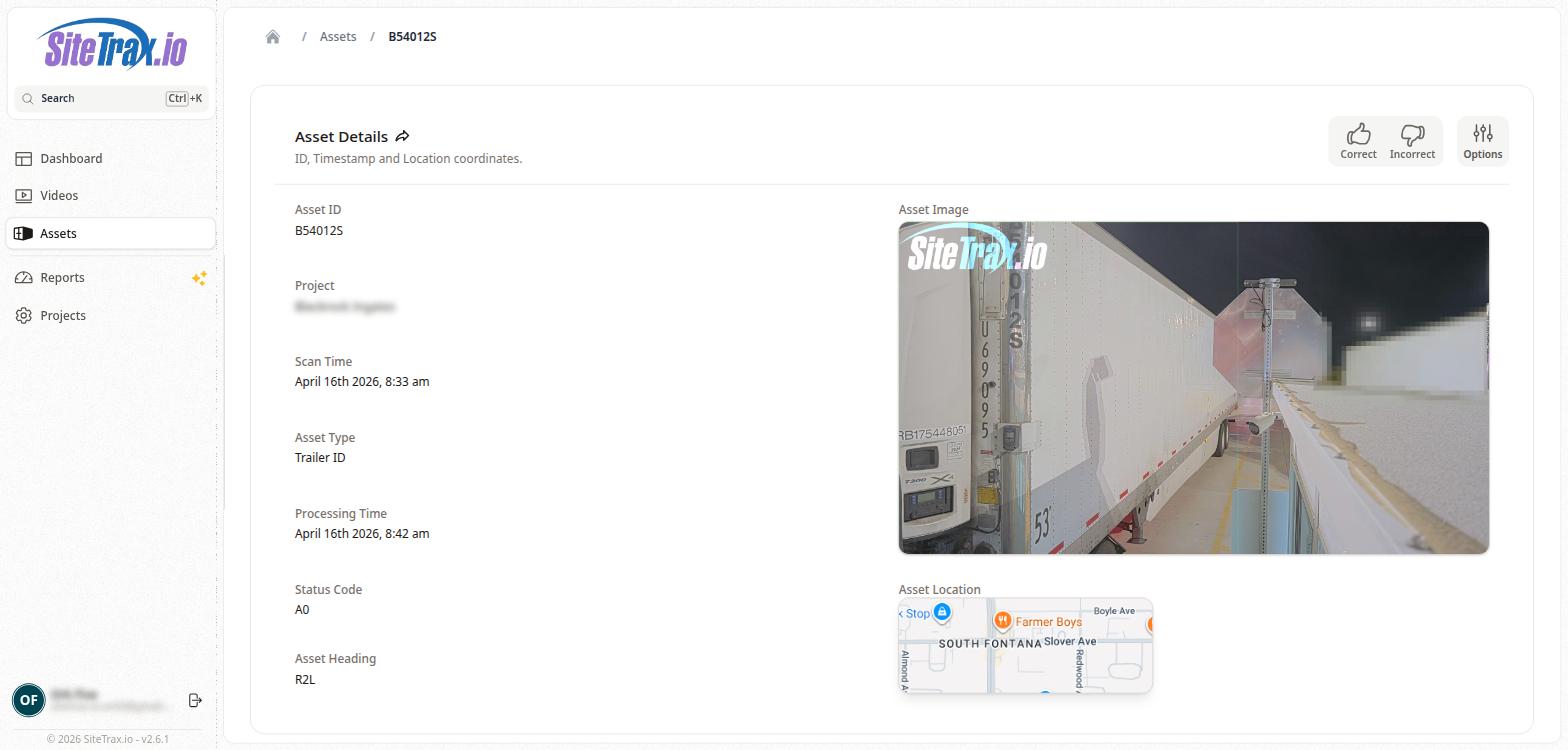 # Asset Types**Retired page.** This documents the legacy SiteTrax.io service portal, which has been replaced by **SiteTrax.io Intelligence** at [app.sitetrax.io](https://app.sitetrax.io). It is kept for reference only and is no longer maintained. For current guidance, see the [SiteTrax.io Intelligence](/shelves/sitetraxio-intelligence) shelf.
SiteTrax.io recognizes multiple asset types based on how and where identification markings are detected on the asset. The most common types include **International Intermodal Vertical ID** (BIC code read from vertical markings on the side of a container), **International Intermodal Horizontal ID** (BIC code read from horizontal markings, typically on the top rail or roof), and Domestic container identifiers. The Asset Type is automatically determined by the SiteTrax.io backend during video processing based on the orientation and format of the detected markings. Understanding asset types is useful for filtering and analyzing detection patterns across different container types and orientations.  # Asset Status and Heading**Retired page.** This documents the legacy SiteTrax.io service portal, which has been replaced by **SiteTrax.io Intelligence** at [app.sitetrax.io](https://app.sitetrax.io). It is kept for reference only and is no longer maintained. For current guidance, see the [SiteTrax.io Intelligence](/shelves/sitetraxio-intelligence) shelf.
Each detected asset includes a Status Code and an Asset Heading that provide additional context about the detection. The **Status Code** indicates the result of the identification process. A status of A0 typically indicates a successful, confident read. Other status codes may indicate partial reads, low-confidence detections, or exceptions that require manual review. The **Asset Heading** describes the direction the asset was moving relative to the camera at the time of capture. For example, R2L means the asset was moving from right to left in the camera's field of view. This heading information, combined with the status tag (e.g., "Exiting"), helps operators understand the flow direction of assets at a gate or checkpoint.  # Full Payload (JSON)**Retired page.** This documents the legacy SiteTrax.io service portal, which has been replaced by **SiteTrax.io Intelligence** at [app.sitetrax.io](https://app.sitetrax.io). It is kept for reference only and is no longer maintained. For current guidance, see the [SiteTrax.io Intelligence](/shelves/sitetraxio-intelligence) shelf.
At the bottom of the Asset Detail page is the Full Payload section, which displays the complete JSON data object for the detected asset. This is the same data structure that is sent to configured integrations and webhooks. The JSON payload includes all fields associated with the asset detection, such as **Text** (the Asset ID), **Type** (the Asset Type), **slno** (the source video segment name), **Status** (e.g., "Success"), **gps\_lat** and **gps\_lon** (GPS coordinates), **datetime** (ISO 8601 timestamp of the detection), **Asset Image** (a URL to the hosted asset thumbnail), **Status\_Code**, **Asset Heading**, **Container\_Company** (the registered owner of the container), **Container\_Country** (the country of registration), and **datetime\_original** and **datetime\_digitized** (original capture timestamps from the video metadata). This raw payload is valuable for developers integrating with the SiteTrax.io API or for troubleshooting data discrepancies between the Service Portal and downstream systems. 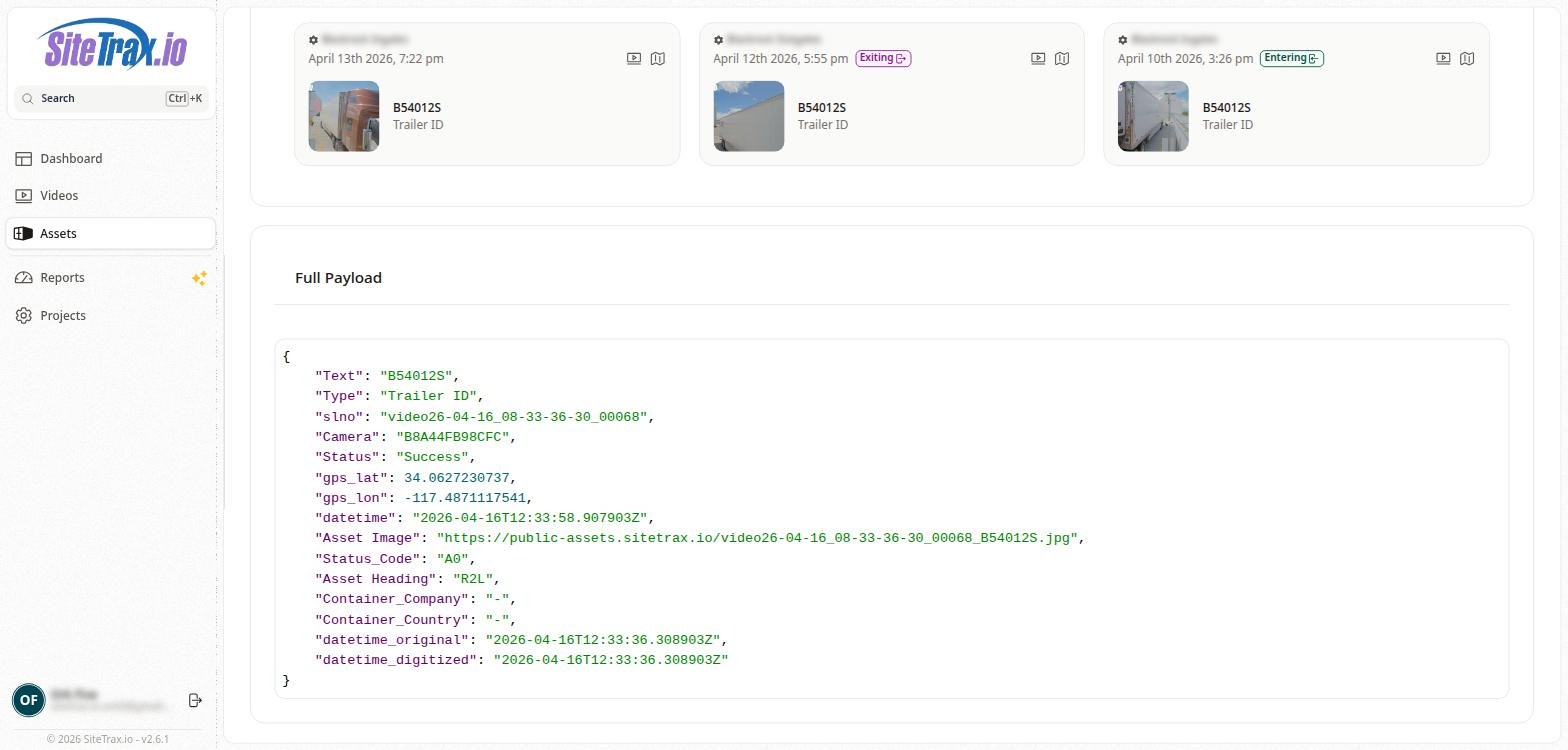 # Projects Documentation for the Projects section of the SiteTrax.io Service Portal, covering project configuration, user management, and integration settings. # Projects List**Retired page.** This documents the legacy SiteTrax.io service portal, which has been replaced by **SiteTrax.io Intelligence** at [app.sitetrax.io](https://app.sitetrax.io). It is kept for reference only and is no longer maintained. For current guidance, see the [SiteTrax.io Intelligence](/shelves/sitetraxio-intelligence) shelf.
The Projects page displays a table of all projects accessible to the current user. Each row shows the Project Name, a team icon indicating user membership, and the Created date. Projects are the primary organizational unit in SiteTrax.io - all videos, assets, and integrations belong to a specific project. Clicking on a project name navigates to the Project Detail page. A search icon in the top-right corner allows users to filter the projects list by name. 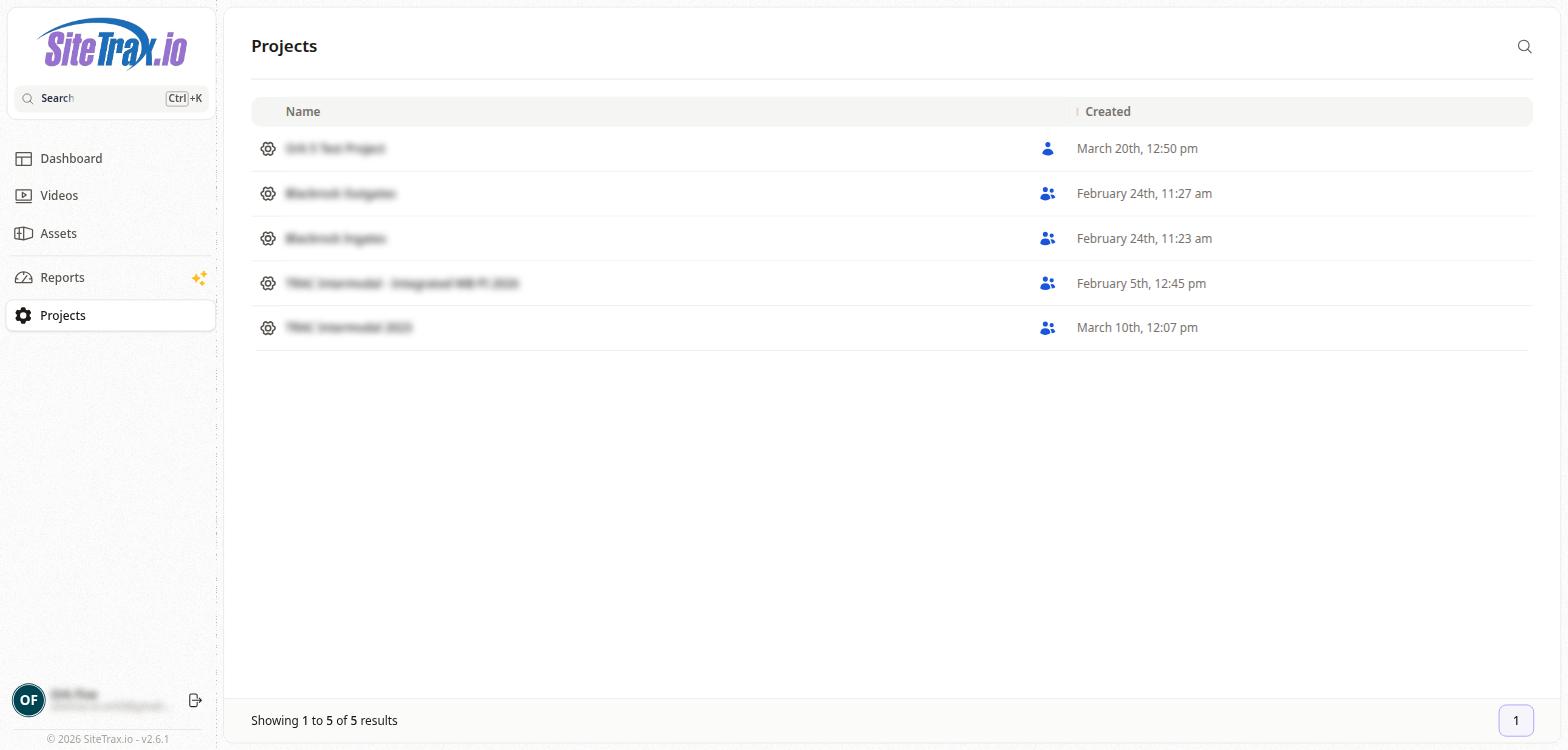 # Project Detail Page**Retired page.** This documents the legacy SiteTrax.io service portal, which has been replaced by **SiteTrax.io Intelligence** at [app.sitetrax.io](https://app.sitetrax.io). It is kept for reference only and is no longer maintained. For current guidance, see the [SiteTrax.io Intelligence](/shelves/sitetraxio-intelligence) shelf.
The Project Detail page provides a comprehensive view of a single project's configuration and status. At the top of the page, the project name is displayed along with its status badge (e.g., "Active" with a green checkmark indicator). Below the project name, three navigation tabs allow quick access to the project's Dashboard, Videos, and Assets views, which display the same data as the main Dashboard, Videos, and Assets pages but filtered to only this project. An **Invite** button in the top-right corner allows project administrators to invite new users by email. A QR code icon next to it can generate a QR code for the project, which may be used for quick configuration of capture devices. 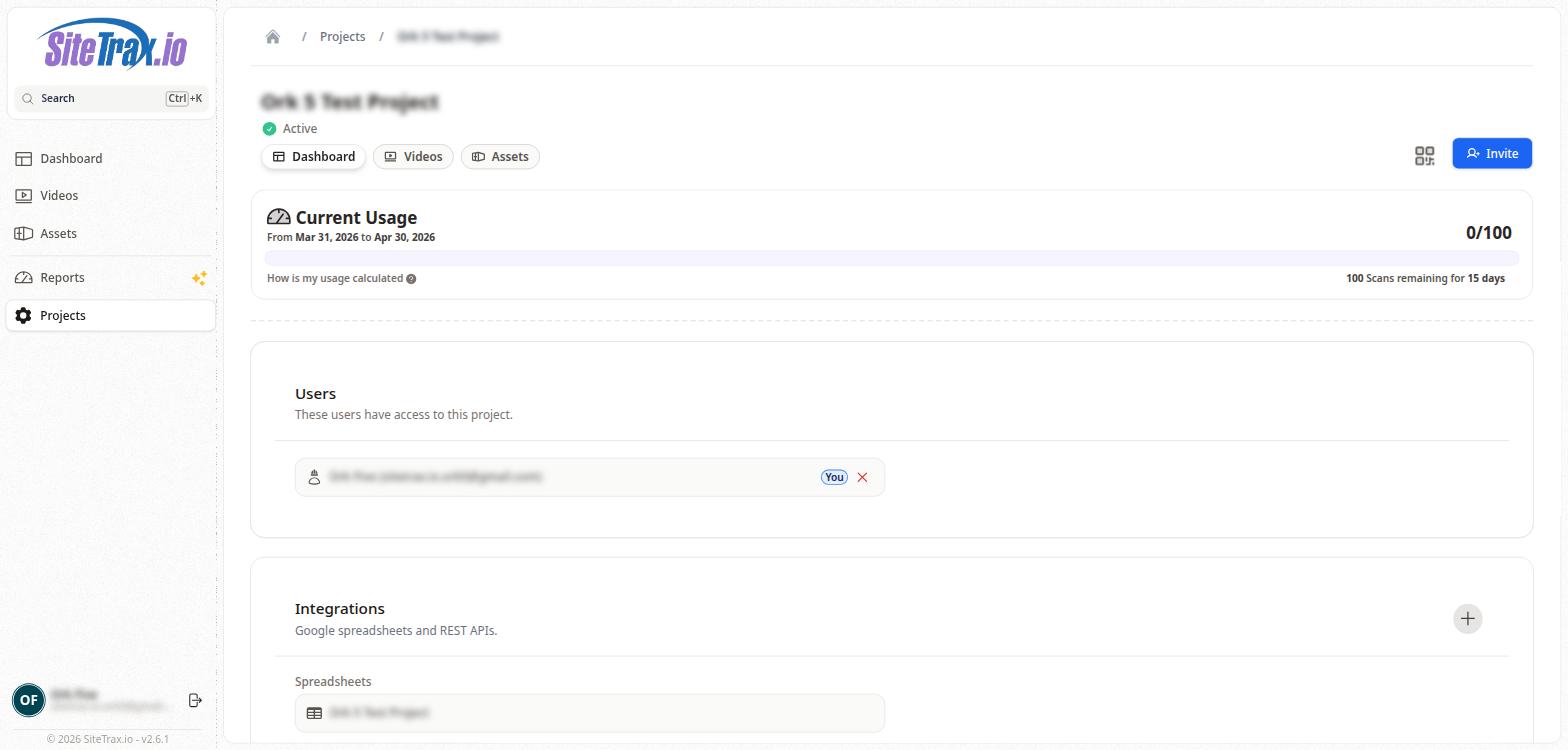 # Project Users**Retired page.** This documents the legacy SiteTrax.io service portal, which has been replaced by **SiteTrax.io Intelligence** at [app.sitetrax.io](https://app.sitetrax.io). It is kept for reference only and is no longer maintained. For current guidance, see the [SiteTrax.io Intelligence](/shelves/sitetraxio-intelligence) shelf.
The Users section of the Project Detail page shows all users who currently have access to the project. Each user is displayed as a card showing their name and email address. The currently logged-in user is identified with a "You" badge. Users can be removed from a project by clicking the X button on their user card. To add new users, click the Invite button in the top-right corner of the project page and enter the email address of the person you wish to invite.  # Project Integrations**Retired page.** This documents the legacy SiteTrax.io service portal, which has been replaced by **SiteTrax.io Intelligence** at [app.sitetrax.io](https://app.sitetrax.io). It is kept for reference only and is no longer maintained. For current guidance, see the [SiteTrax.io Intelligence](/shelves/sitetraxio-intelligence) shelf.
The Integrations section of the Project Detail page shows all configured data integrations for the project. A "+" button allows administrators to add new integrations. Integrations are the mechanism by which SiteTrax.io automatically sends detected asset data to external systems in real time. Integrations are organized into three categories: - **Spreadsheets** - Google Sheets connections where asset data is automatically written to configured spreadsheet documents as new rows. - **REST APIs** - HTTP webhook endpoints that receive JSON payloads for each detected asset in real time. These can connect to Yard Management Systems, Transportation Management Systems, or any custom application. - **Chain.io Integrations** - Connections to the Chain.io cloud-based supply chain integration platform for enterprise-grade data routing and transformation. Each configured integration is displayed as a named entry and can be clicked to view or edit its configuration. 