**Retired page.** This documents the legacy SiteTrax.io service portal, which has been replaced by **SiteTrax.io Intelligence** at [app.sitetrax.io](https://app.sitetrax.io). It is kept for reference only and is no longer maintained. For current guidance, see the [SiteTrax.io Intelligence](/shelves/sitetraxio-intelligence) shelf.
The Assets page displays all detected assets in a card-based grid layout. Each asset card shows a thumbnail image of the captured asset, the Project name, the date and time of detection, a status tag (e.g., "Exiting" with a directional arrow), the Asset ID (the container or chassis number), and the Asset Type (e.g., International Intermodal Vertical ID, International Intermodal Horizontal ID). Each card also includes icon buttons for viewing the associated video clip and for deleting the asset record. Assets are displayed in reverse chronological order, with the most recently detected assets appearing first. Pagination controls at the bottom allow users to navigate through all results. A "Filter Exceptions" toggle is available in the toolbar, allowing users to quickly filter the view to show only assets that may require manual review or have been flagged as exceptions. The standard date range, time period, and project filters are also available at the top of the page. 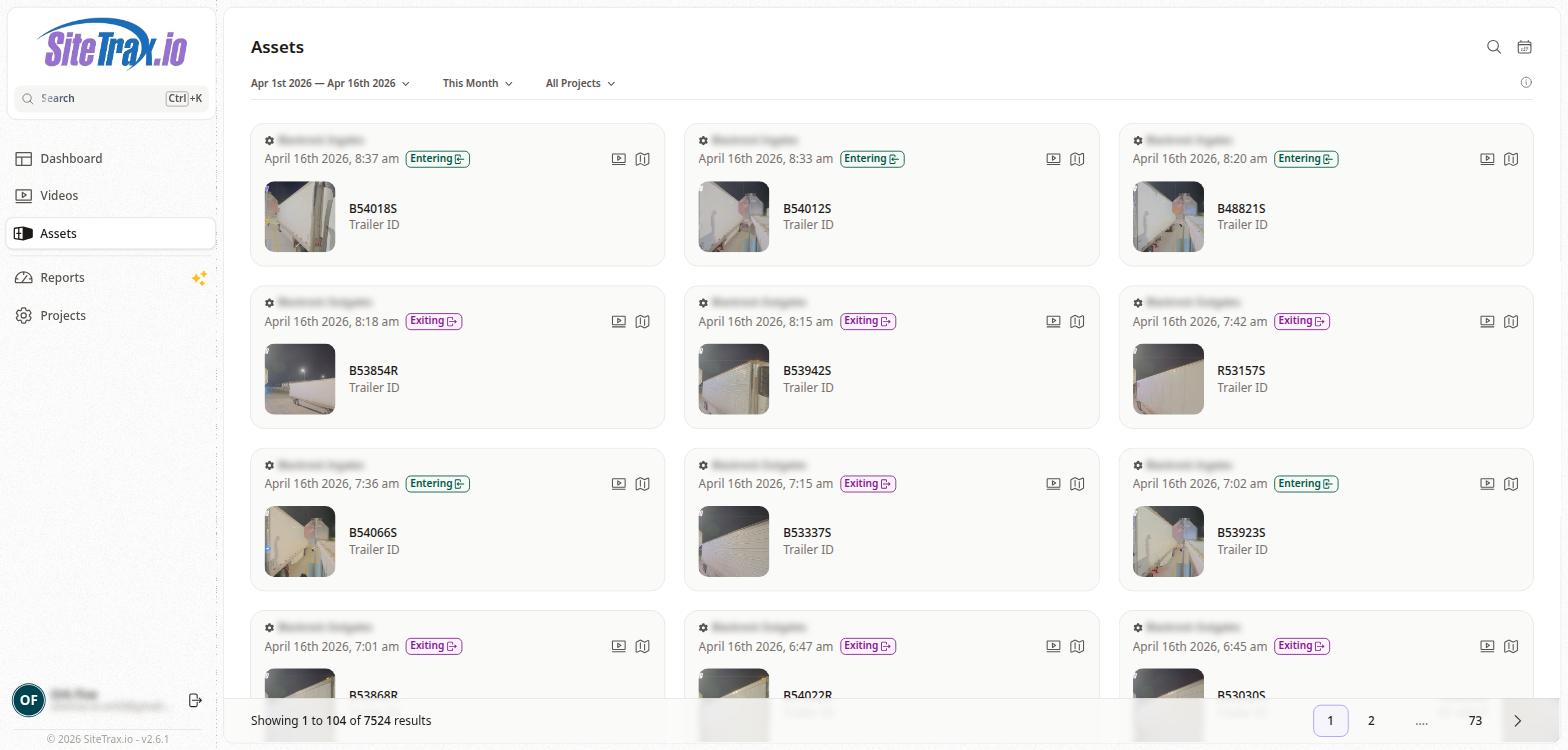 # Asset Detail Page**Retired page.** This documents the legacy SiteTrax.io service portal, which has been replaced by **SiteTrax.io Intelligence** at [app.sitetrax.io](https://app.sitetrax.io). It is kept for reference only and is no longer maintained. For current guidance, see the [SiteTrax.io Intelligence](/shelves/sitetraxio-intelligence) shelf.
Clicking on an asset card from the Assets Gallery opens the Asset Detail page. The breadcrumb navigation shows the path: Home > Assets > \[Asset ID\]. The Asset Details section displays comprehensive information about the detected asset. The left column includes the Asset ID (the container or chassis identification number), Project (the associated project name), Scan Time (the date and time the asset was captured), Asset Type (the classification of the identification), Processing Time (when the backend completed analysis), Status Code (e.g., A0 for a successful read), and Asset Heading (the direction the asset was facing relative to the camera, e.g., R2L for right-to-left). The right column displays the Asset Image, which is a cropped photograph of the detected asset extracted from the video frame, and the Asset Location, which shows the GPS coordinates of the capture plotted on an embedded map. Three action buttons appear in the top-right corner of the detail section: **Correct** (to confirm the asset was correctly identified), **Incorrect** (to flag an identification error), and **Options** (for additional actions). 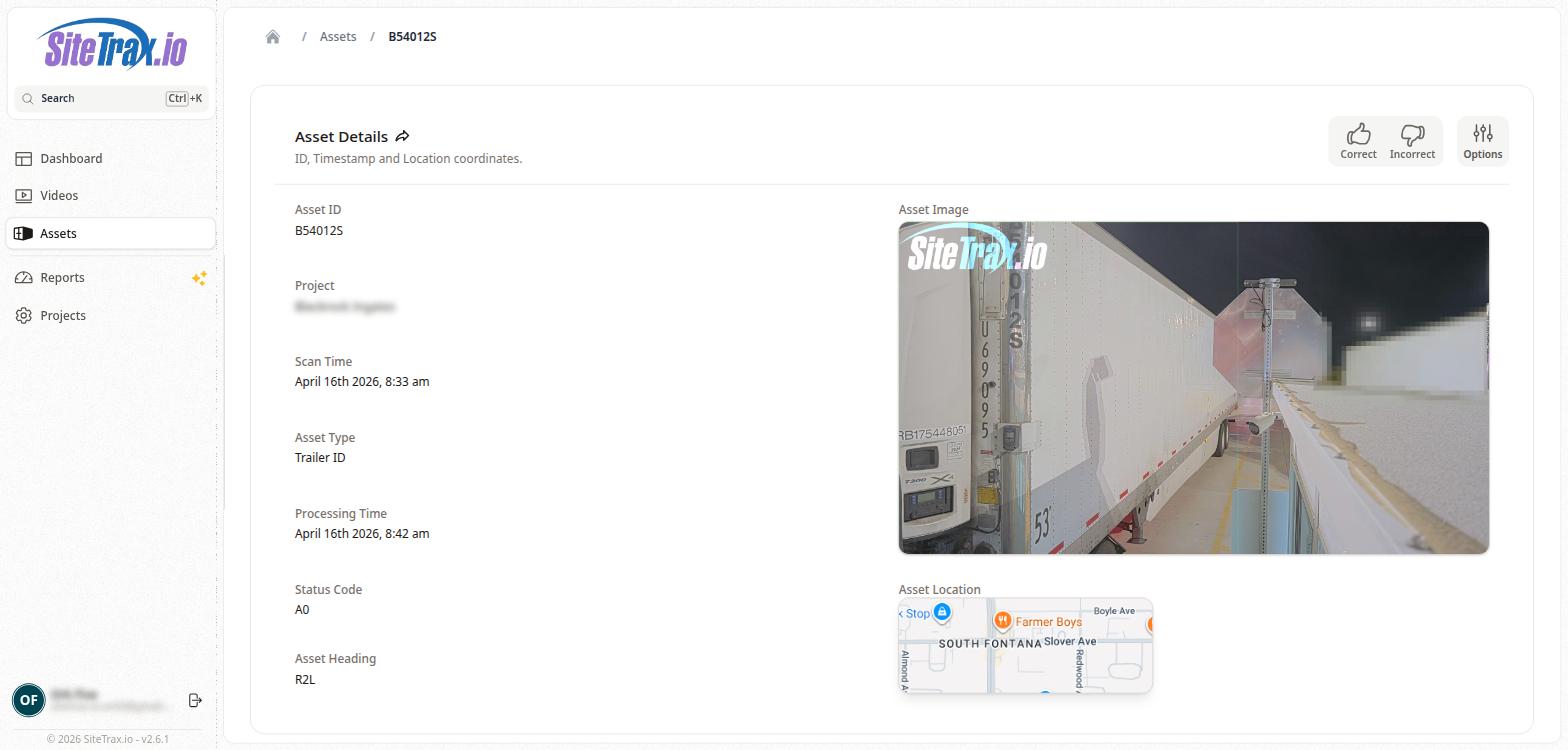 # Asset Types**Retired page.** This documents the legacy SiteTrax.io service portal, which has been replaced by **SiteTrax.io Intelligence** at [app.sitetrax.io](https://app.sitetrax.io). It is kept for reference only and is no longer maintained. For current guidance, see the [SiteTrax.io Intelligence](/shelves/sitetraxio-intelligence) shelf.
SiteTrax.io recognizes multiple asset types based on how and where identification markings are detected on the asset. The most common types include **International Intermodal Vertical ID** (BIC code read from vertical markings on the side of a container), **International Intermodal Horizontal ID** (BIC code read from horizontal markings, typically on the top rail or roof), and Domestic container identifiers. The Asset Type is automatically determined by the SiteTrax.io backend during video processing based on the orientation and format of the detected markings. Understanding asset types is useful for filtering and analyzing detection patterns across different container types and orientations.  # Asset Status and Heading**Retired page.** This documents the legacy SiteTrax.io service portal, which has been replaced by **SiteTrax.io Intelligence** at [app.sitetrax.io](https://app.sitetrax.io). It is kept for reference only and is no longer maintained. For current guidance, see the [SiteTrax.io Intelligence](/shelves/sitetraxio-intelligence) shelf.
Each detected asset includes a Status Code and an Asset Heading that provide additional context about the detection. The **Status Code** indicates the result of the identification process. A status of A0 typically indicates a successful, confident read. Other status codes may indicate partial reads, low-confidence detections, or exceptions that require manual review. The **Asset Heading** describes the direction the asset was moving relative to the camera at the time of capture. For example, R2L means the asset was moving from right to left in the camera's field of view. This heading information, combined with the status tag (e.g., "Exiting"), helps operators understand the flow direction of assets at a gate or checkpoint.  # Full Payload (JSON)**Retired page.** This documents the legacy SiteTrax.io service portal, which has been replaced by **SiteTrax.io Intelligence** at [app.sitetrax.io](https://app.sitetrax.io). It is kept for reference only and is no longer maintained. For current guidance, see the [SiteTrax.io Intelligence](/shelves/sitetraxio-intelligence) shelf.
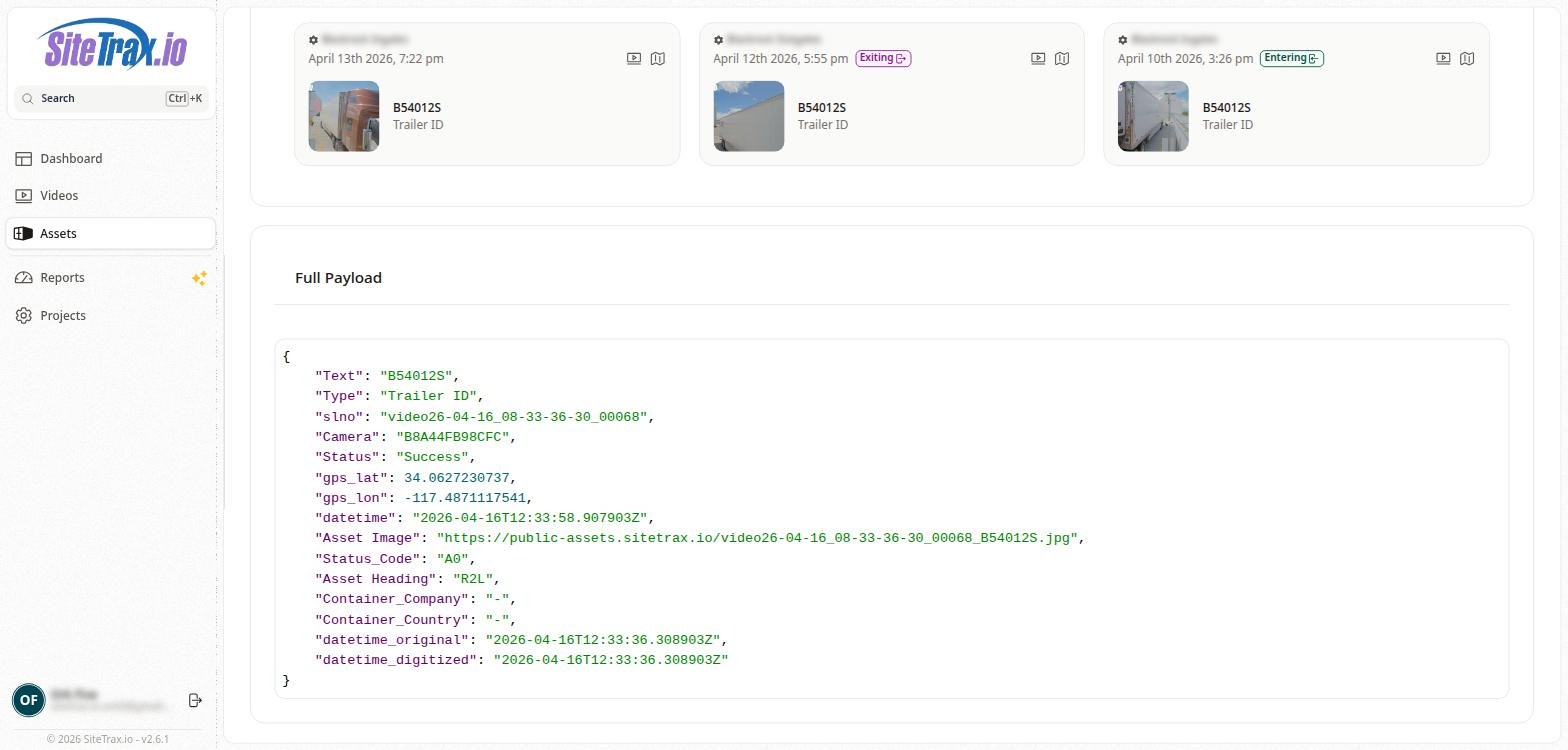
At the bottom of the Asset Detail page is the Full Payload section, which displays the complete JSON data object for the detected asset. This is the same data structure that is sent to configured integrations and webhooks. The JSON payload includes all fields associated with the asset detection, such as **Text** (the Asset ID), **Type** (the Asset Type), **slno** (the source video segment name), **Status** (e.g., "Success"), **gps\_lat** and **gps\_lon** (GPS coordinates), **datetime** (ISO 8601 timestamp of the detection), **Asset Image** (a URL to the hosted asset thumbnail), **Status\_Code**, **Asset Heading**, **Container\_Company** (the registered owner of the container), **Container\_Country** (the country of registration), and **datetime\_original** and **datetime\_digitized** (original capture timestamps from the video metadata). This raw payload is valuable for developers integrating with the SiteTrax.io API or for troubleshooting data discrepancies between the Service Portal and downstream systems.