MCP Server
Technical reference for the SiteTrax.io remote MCP endpoint: OAuth, scopes, tools, response semantics, evidence and operational limits. ChatGPT, Claude and other compatible clients can query authorized data. The Microsoft 365 Copilot guide documents a pending federated connector; public availability remains in submission.
SiteTrax.io MCP Server
Connect AI assistants and MCP-compatible applications directly to SiteTrax.io operational data and SiteTrax.io Intelligence.
Overview
The SiteTrax.io Model Context Protocol (MCP) server provides secure access to SiteTrax.io operational data through compatible AI applications and MCP clients.
The MCP server lets authorized users query the same SiteTrax.io projects and operational information that their SiteTrax.io account is permitted to access. This can include asset observations, project activity, operational metrics, exceptions, images, video metadata, equipment movement history, camera health, and other SiteTrax.io Intelligence capabilities.
SiteTrax.io remains the system of record. The MCP server provides controlled access to SiteTrax.io data and capabilities based on the authenticated user's permissions.
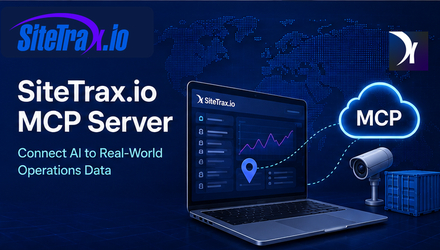
MCP Server Endpoint
Use the following remote MCP endpoint:
https://mcp.sitetrax.io/mcp
The SiteTrax.io MCP server uses HTTPS and is designed for remote MCP clients that support Streamable HTTP.
Requirements
To connect to the SiteTrax.io MCP server, you need:
-
An active SiteTrax.io account with verified email. Complete verification before starting the assistant connection.
-
Access to at least one SiteTrax.io project, site, or yard for useful operational answers. OAuth can succeed with no shared projects and return an empty project list.
-
An MCP-compatible client that supports remote HTTPS MCP servers.
-
OAuth authentication support in the MCP client.
-
Any SiteTrax.io permissions required for the data or capabilities you want to use.
Your MCP client can only access SiteTrax.io information available to your authenticated SiteTrax.io account. A published Intelligence profile is optional for ordinary MCP access. Before connecting, confirm the intended account in the application. Native application sign-in and external-assistant OAuth approval are separate steps. See Account Access and OAuth.
Connect to SiteTrax.io
The exact setup interface depends on the MCP client you use.
In most compatible clients:
-
Open the application's MCP, integrations, connectors, or tools settings.
-
Add a new remote MCP server.
-
Enter the SiteTrax.io MCP endpoint:
https://mcp.sitetrax.io/mcp -
Start the connection.
-
When prompted, sign in to SiteTrax.io.
-
Review the requested SiteTrax.io permissions.
-
Authorize the connection.
-
Return to your MCP client.
-
Confirm that SiteTrax.io tools are available, then ask: "Using SiteTrax.io, list the projects I have access to." Compare the result with Projects in the application under the same account.
No SiteTrax.io password should be entered directly into the MCP configuration. Authentication is completed through the SiteTrax.io OAuth authorization process.
Authentication and Permissions
SiteTrax.io uses OAuth-based authorization for protected MCP capabilities.
Permissions are scope-based. The tools available to an MCP client depend on the scopes approved for that connection.
Read Access
Standard operational queries use SiteTrax.io read access.
Read access can include:
-
Projects and sites shared with the user.
-
Asset observations.
-
Container, chassis, trailer, and other supported asset identifiers.
-
Project activity.
-
Asset history.
-
Operational aggregates.
-
Status and exception information.
-
Camera and processing health.
-
Detection images and available media metadata.
-
SiteTrax.io product and operational reference information, selected published profile context, your notification list and notification delivery history.
Read access does not grant access to SiteTrax.io projects that have not been shared with the authenticated user.
Additional Capabilities
Some MCP integrations can support additional SiteTrax.io capabilities, such as notifications or scheduled digests.
Creating a detection alert, creating a scheduled email digest, or cancelling one of your notifications requires read access plus sitetrax:notifications:write. Listing notifications and reading delivery history requires only sitetrax:read. The additional write permission may be requested during initial connection or later, depending on the client.
Grant additional permissions only when the MCP client and intended workflow require them.
What You Can Ask
The SiteTrax.io MCP server supports natural-language interaction with SiteTrax.io operational data.
Examples include:
Find an Asset
Prompt
Where was container SITU 123456 7 last observed?
Result
SiteTrax.io can return the most recent authorized observation of that asset, including available project, time, capture, and operational metadata.
Review Site Activity
Prompt
Summarize activity at my SiteTrax.io sites for the last seven days.
Result
SiteTrax.io can calculate activity across the projects available to your account and return operational totals and trends for the requested period.
Analyze Asset Types
Prompt
Show today's SiteTrax.io detections by asset type.
Result
SiteTrax.io can provide server-calculated totals and breakdowns for the requested sites and time period.
Review Processing Status
Prompt
Break down today's detections by status code and asset type.
Result
SiteTrax.io can return processing results grouped by status and asset type so that the results can be interpreted correctly.
Find Exceptions
Prompt
Show me records that may require review today.
Result
SiteTrax.io can retrieve status-selected records from your shared projects. The default review queue selects non-A0 rows broadly; interpret the result type and status before classifying a row as a genuine concern.
Check Operational Health
Prompt
Were there any unusual volume gaps at my sites this week?
Result
SiteTrax.io can identify low or zero-volume UTC days and repeated or multi-source identifier-text groups. These are triage signals: reduced activity does not prove an outage, and a repeated-text group does not prove duplicate physical equipment.
Analyze Equipment Movement
Prompt
What was the observed time between gate-in and gate-out for trailers this week?
Result
With identifiable equipment, defined entry/exit or intermediate stages, and an agreed maximum visit duration, SiteTrax.io can calculate completed observed visits and average, median and percentile durations. It returns pairing assumptions and incomplete-observation counts alongside the result.
Available Capability Groups
The tools available to a specific MCP client vary with the approved scopes and client support. Read capabilities use sitetrax:read. Creating or cancelling notifications also requires sitetrax:notifications:write, which may be approved initially or later. See Alerts and Scheduled Digests for supported workflows.
| Capability group | What you can ask for |
|---|---|
| Projects and sites | Projects available to your account, project detail and configuration, recent activity, cameras and gate configuration, activity compared across projects |
| Assets | Asset observation search, the latest observation for an identifier, detailed asset records, asset history, detection images, video metadata, filtering by project, camera, type, status, identifier or time |
| Analytics | Stored-result counts, distinct recorded-identifier totals, grouping by project, camera, type, status or time period, ordered-stage visit and duration analysis, duration percentiles, inferred occupancy relationships, activity trends and potential anomalies |
| Review and exceptions | Processing status review, records matching defined review criteria, unreadable or unusual results, supplied-list exceptions, persisted audit feedback, and exact asset records when more context is needed |
| Video | Video search and individual video detail records |
| Camera and processing health | Recorded camera activity, first/last observations, status distributions and raw A0 shares across your shared projects; these do not directly measure hardware uptime or OCR accuracy |
| Reference information | Supported capture methods, SiteTrax.io data fields, asset types, processing status codes, terminology, operational metric definitions and product capabilities |
| Notification history | Listing your alerts and digests and reading their delivery history |
| Published profile context | Selected facts and priorities from your published personal profile; retrieval and use depend on the assistant |
| Notifications and digests | Creating detection alerts and scheduled email digests, and cancelling your notifications |
SiteTrax.io performs analytical reductions on the server. MCP clients do not need to download large raw datasets to calculate supported SiteTrax.io metrics. They can retrieve permitted supporting observations and records explaining an analytical result. Query results are returned to the assistant provider you choose; this is not a zero-disclosure connection.
For ordinary queries, choose a count or supported measure and up to two grouping dimensions. The separate totals cover the full resolved query window even when the displayed group list is capped. If an aggregate filter selects only some groups, the whole-window totals still include the other groups. Record pages are for retrieval and explanation; they must not be combined to reconstruct an unsupported analytical result.
Sequence analysis supports two to eight ordered stages and exactly one eligible equipment family per request: containers, chassis or trailers. It excludes unusable identifiers and synthetic pair placeholders. USDOT numbers identify carriers and cannot identify individual visits. Define the site boundaries, maximum visit duration and whether the report selects visits by entry, exit or both. A valid configured ingate/outgate project pair can supply the stages; ambiguous pairing requires clarification.
Duration results include completed-visit counts, average, minimum, maximum, median (p50), p75 and p90, plus consecutive-stage statistics. For example, p90 describes the duration within which 90% of the completed visits finished. Review open, expired, superseded and other excluded observations before comparing periods. Inferred occupancy at entry can be compared with completed duration, but an association does not prove causation or a facility capacity limit.
Supporting sequence records identify the contributing visits or event decisions and link them to authorized detections. Results carry a version so an assistant can detect when evidence has changed since the original aggregate. A partial record page is not the complete population. Queries that exceed server guardrails must be narrowed; they do not return a partial sequence calculation as complete.
A processing status is not automatically a physical-condition or operational exception. The asset type, status code and operational context must be interpreted together.
Notification creation and cancellation require the client to request and receive sitetrax:notifications:write in addition to read access. A read-only integration cannot perform those actions. Repeating the same read-only authorization request does not add permission. Check your provider’s dedicated setup section for its supported tools and consent flow.
The public Intelligence profile tool, sitetrax_intelligence_profile, returns selected facts and priorities from the authenticated user's latest published revision. It does not return drafts, the saved working brief, custom instructions or response-style preferences. A published profile is personal and optional for ordinary operational queries. Its project scope is the publication snapshot intersected with current sharing: revoked projects are removed, while newly shared projects do not automatically join the snapshot. Profile selection does not narrow OAuth authorization; an operational query still needs the intended project filter.
Curated reference lookup
sitetrax_reference_lookup returns sourced product guidance and logistics definitions from a curated reference corpus. It does not browse arbitrary URLs or retrieve live tariffs, availability, holds, releases, rates or invoices. Use the operational tools for current SiteTrax.io records and authoritative external sources for current contractual facts.
Research search and fetch
Compatible research clients can use search to find shared projects, matching equipment records, selected aggregate reports and reference entries, then call fetch with a returned ID. The compatibility report catalog includes status breakdown, weekly status trend and BIC-prefix carrier mix. Broader operational analytics use the named SiteTrax.io tools.
Research results include titles, IDs, URLs and source metadata where available. An MCP research URL identifies a returned result; it is not a promise of a public report webpage. A reference summary is distinct from a freshly retrieved source page, and citation display depends on the assistant.
Supported Capture Data
Depending on a customer's SiteTrax.io configuration, operational data can include information generated through SiteTrax.io capture methods such as:
-
SiteTrax.io Mobile
-
SiteTrax.io Snap
-
SiteTrax.io Gate
-
SiteTrax.io Drive
-
Other supported camera-based capture configurations
Detected or processed identifiers can include supported equipment and operational identifiers such as:
-
Intermodal container IDs
-
Chassis IDs
-
Trailer IDs
-
USDOT numbers
-
License plate information where supported by the configured solution
-
Other configured OCR or operational outputs
Available metadata can include timestamps, project information, camera information, location data, status information, images, direction, and asset relationships.
Images and Media
The MCP returns stored detection-image links, video metadata and thumbnail links where available. It does not download or base64-encode media, stream a clip, or generate temporary playback links. Open the corresponding authorized record in the SiteTrax.io application to review available recordings.
Media availability depends on:
-
The SiteTrax.io project configuration.
-
The authenticated user's access.
-
Record retention.
-
Redaction settings.
-
The type of capture.
For a redacted record, the MCP withholds media URLs and explicitly reports that media is redacted while returning permitted operational metadata.
Data Access and Security
The SiteTrax.io MCP server uses the permissions of the authenticated SiteTrax.io user.
Connecting an MCP client does not automatically give that client access to every SiteTrax.io customer, project, or site.
Users can only query information made available to their SiteTrax.io account.
Remote MCP traffic uses HTTPS.
OAuth access tokens are used to authorize protected requests. Do not place access tokens, passwords, or secrets into prompts.
Data Accuracy and Interpretation
SiteTrax.io returns operational observations and processing results.
Not every stored result should be interpreted as a verified physical event without considering its type and processing status.
For example:
-
A status can describe an OCR or validation outcome.
-
Some records can represent structural or synthetic pairing results.
-
A USDOT number identifies a registered motor carrier and does not uniquely identify an individual tractor.
-
An unreadable asset result does not by itself prove that the physical asset is damaged.
-
Timing between camera observations establishes an observed interval between defined boundaries. It does not automatically establish the cause of that interval.
When operational decisions depend on a result, use the supporting SiteTrax.io record and available evidence.
Check the resolved time window. Ordinary asset/video date filters snap to UTC-midnight business-day boundaries. A plain end date includes that whole UTC day; a midnight timestamp is an exclusive endpoint. A grouping timezone changes time buckets, not those date-filter boundaries. Sequence analysis also supports exact timezone-aware start/end timestamps for local calendar and daylight-saving-sensitive periods.
Ordinary asset and video queries without date bounds can cover all available history. Specify a period for a focused result. Asset calculations use scan time with creation time as a legacy fallback; video calculations use creation time. These query measures are separate from billing-account quota and invoice usage.
Troubleshooting
| Symptom | Likely cause and next step |
|---|---|
| The MCP client cannot connect |
Likely cause: The client does not support remote HTTPS MCP servers, or a network control is blocking the endpoint What to do: Confirm the endpoint is |
| Authentication never starts |
Likely cause: The client only supports local stdio MCP servers What to do: A stdio-only client cannot reach a remote endpoint. Use a client that supports remote MCP servers with OAuth |
| Authentication succeeds but no projects appear |
Likely cause: The signed-in account has no shared projects, or a different account was used What to do: Confirm you signed in with the intended SiteTrax.io account and that at least one project is shared with it. This is a sharing question rather than an authentication one |
| A tool reports that another OAuth scope is required | Check the actual granted permissions. Notification changes need sitetrax:notifications:write; read-only connections cannot perform them. Use your provider’s dedicated setup section for authorization steps. |
| An asset cannot be found |
Likely cause: Incomplete identifier, the wrong time window, or the project is not shared with your account What to do: Use the complete identifier, check its spelling, widen the time period, name the project or site, and confirm your account can reach that project |
| Results are too broad |
Likely cause: The prompt carries no operational context What to do: Add the project or site, a date or time range, the asset type, the camera, the status, or the exact equipment identifier |
| An image or video is not available |
Likely cause: Project configuration, record retention, user permissions, or redaction What to do: Media can be withheld while permitted operational metadata is still returned. The absence of media does not mean the underlying record is unavailable |
Recommended Prompting
For better results:
-
Name SiteTrax.io in the prompt.
-
Identify the site or project when possible.
-
Give a specific date or time range.
-
Specify the type of asset.
-
Use the exact equipment identifier when searching for one asset.
-
Ask for a breakdown when comparing activity.
-
Ask for supporting observations when a result will be used operationally.
Example:
Using SiteTrax.io, summarize container and chassis activity at the Utah site for the last seven days and break the results down by status code and asset type.
Known Issues and Limitations
-
Access is limited to the SiteTrax.io projects shared with the authenticated account. Connecting an MCP client does not widen SiteTrax.io permissions.
-
The server provides tools and resources. Current source also registers four prompts:
project_ops_review,anomaly_scan,carrier_mixandinvestigate_asset. Prompt availability and presentation depend on the deployed catalog and the client; discover the connected server's capabilities. -
The endpoint is remote. A client that only supports local stdio MCP servers cannot connect to it.
-
Communication uses Streamable HTTP. Server-Sent Events transport is not supported.
-
Detection images and video can be withheld by project configuration, record retention, user permissions or redaction, while permitted operational metadata is still returned.
-
An asset record is one stored processing result. It is not necessarily one physical asset or one direct observation, and combined container and chassis processing can add synthetic pair-side rows.
-
Sequence and duration results are estimates from observed stages, not continuous tracking. Incomplete visits are reported separately and excluded from completed-duration statistics. If the required boundaries or eligibility cannot be established, the assistant should explain the limitation rather than invent a result.
-
Tool names, arguments and response shapes can change between server versions. Ask SiteTrax.io for its current schema rather than assuming a fixed contract.
Support
For SiteTrax.io MCP assistance, contact us at https://www.sitetrax.io/contact
When reporting a problem, include:
-
The MCP client you are using.
-
The approximate time of the issue.
-
The SiteTrax.io account email.
-
The project or site involved.
-
The prompt or operation you attempted.
-
The error message, if one was shown.
Do not send passwords, OAuth tokens, client secrets, or other credentials by email.
Privacy Policy
https://sitetrax.io/privacy-policy/
Terms of Service
https://sitetrax.io/tos/
About Model Context Protocol
Model Context Protocol is an open protocol that enables AI applications to connect to external tools and data sources.
Remote MCP servers can use Streamable HTTP for communication and OAuth-based authorization for protected resources.
SiteTrax.io implements MCP to make authorized physical-operations data available to compatible AI applications while retaining SiteTrax.io as the source system.
Microsoft
Connect SiteTrax.io to Microsoft 365 Copilot
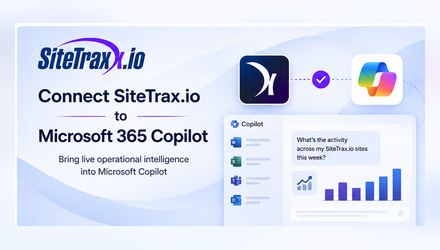
Use the SiteTrax.io connector to bring live SiteTrax.io operational intelligence into Microsoft 365 Copilot.
Availability. The SiteTrax.io Federated Copilot Connector is in submission to Microsoft and is not yet listed in the Copilot connectors gallery. This page documents how the connector works and how it will be enabled once Microsoft publishes it. Until then, SiteTrax.io operational data is available through any MCP client that supports remote HTTPS servers with OAuth, using the endpoint https://mcp.sitetrax.io/mcp. See the SiteTrax.io MCP Server page for that path.
Overview
The SiteTrax.io Microsoft 365 Copilot Connector lets authorized users query SiteTrax.io operational data directly from Microsoft 365 Copilot.
SiteTrax.io is implemented as a Microsoft Federated Copilot Connector using Model Context Protocol (MCP).
The SiteTrax.io federated connector does not maintain a synchronized Microsoft 365 index of operational records. When Copilot requests SiteTrax.io information, SiteTrax.io returns the authorized results to Microsoft for that response. SiteTrax.io remains the source system; query-time retrieval still shares the returned data with the assistant provider.
Access remains tied to the user's SiteTrax.io permissions.
What You Can Do
After SiteTrax.io is connected, users can ask Microsoft 365 Copilot questions such as:
What SiteTrax.io sites do I have access to?
Summarize SiteTrax.io asset activity for the last seven days.
Where was container SITU 123456 7 last observed?
Show today's detections at the Utah site by status code and asset type.
Which SiteTrax.io records may require review today?
Were there any unusual volume gaps across my sites this week?
Compare SiteTrax.io activity this week with last week.
Copilot can use SiteTrax.io to retrieve and summarize authorized operational information without requiring the user to manually navigate through individual SiteTrax.io records.
Requirements
Before using the SiteTrax.io connector, you need:
-
An active SiteTrax.io account with verified email. Finish verification before starting the Copilot connection.
-
Access to at least one SiteTrax.io project, yard, facility, or site.
-
A work or school Microsoft account in an organization where the SiteTrax.io connector has been enabled.
-
A Microsoft 365 Copilot license that supports federated connectors.
-
Permission from your Microsoft 365 administrator to use the SiteTrax.io connector.
Your Microsoft 365 administrator controls whether SiteTrax.io is available in your organization.
Your SiteTrax.io account controls which SiteTrax.io data you can access.
For Microsoft 365 Administrators
SiteTrax.io must be enabled for your Microsoft 365 organization before users can access it through Copilot.
Enable SiteTrax.io
Sign in to the Microsoft 365 admin center with an account that has the required Microsoft 365 administrative permissions.
Go to:
Copilot connectors → Connectors gallery
Find SiteTrax.io in the connectors gallery.
Review the connector information, including:
-
Publisher
-
Connector description
-
Permissions
-
Privacy policy
-
Terms
-
Support information
Approve or enable SiteTrax.io for the appropriate users or groups in your organization.
Microsoft can make connectors available through a staged rollout before organization-wide deployment. Your Microsoft 365 administrator determines who can use the connector.
If SiteTrax.io does not appear in the gallery, confirm that:
-
The connector is available to your Microsoft 365 tenant.
-
Federated connectors are enabled for your organization.
-
Your administrator has the appropriate Microsoft 365 role.
-
Any Microsoft release or tenant restrictions have been satisfied.
Changes to connector availability can require time to propagate through Microsoft 365.
Enabled connectors are managed under Copilot connectors → Your connections. To pilot SiteTrax.io with a limited group before a wider release, use Add staging and target a Microsoft Entra ID group. The Staged Rollout column shows which connectors are currently staged. Third-party federated connectors are a preview capability, so labels and placement can change.
For SiteTrax.io Users
After publication and your administrator's enablement, you must authorize your own SiteTrax.io account. Confirm the intended account in the SiteTrax.io application first. Application sign-in alone does not authorize Copilot, and a published Intelligence profile is optional for ordinary MCP access. See Account Access and OAuth.
The SiteTrax.io federated connector uses user-level authentication. It does not use one shared SiteTrax.io account for the entire Microsoft 365 organization.
Connect Your Account
Open Microsoft 365 Copilot with your work or school account.
When Copilot asks to connect to SiteTrax.io, select the option to connect or sign in.
You will be redirected to the SiteTrax.io authorization process.
-
Sign in to your SiteTrax.io account.
-
Review the SiteTrax.io access requested for Microsoft Copilot.
-
Approve the connection.
-
Return to Microsoft 365 Copilot.
You do not need to provide your SiteTrax.io password to Microsoft Copilot.
Read-Only Copilot Access
The SiteTrax.io Federated Copilot Connector is read-only.
The federated connector exposes permitted read-only tools, including search, retrieval and supported server-side analytics. SiteTrax.io also restricts its OAuth grant to sitetrax:read. Notification changes require the separate sitetrax:notifications:write scope, which is not granted to the Copilot connection.
The Copilot connector does not expose SiteTrax.io tools that:
-
Create operational records.
-
Modify SiteTrax.io data.
-
Create notification automations.
-
Cancel notification automations.
-
Create recurring digest automations.
-
Perform other cross-service write actions.
Microsoft Copilot can query authorized SiteTrax.io information, but the federated connector cannot use the connector to modify SiteTrax.io or create external automations.
This restriction is enforced by SiteTrax.io authorization in addition to the MCP tool configuration used by the Microsoft connector.
What Data Can Copilot Access?
Copilot can only access SiteTrax.io data that the signed-in SiteTrax.io user is authorized to access.
Depending on the customer's configuration, this can include:
Projects and Sites
-
Sites
-
Yards
-
Facilities
-
Projects
-
Cameras
-
Project activity
Asset Observations
-
Intermodal container IDs
-
Chassis IDs
-
Trailer IDs
-
USDOT numbers
-
Other supported operational identifiers
-
Observation timestamps
-
Site and project information
-
Camera information
-
Direction information
-
Processing status
-
Available capture metadata
Operational Intelligence
-
Activity totals
-
Distinct stored identifier counts, with the returned eligibility and counting rules
-
Trends
-
Status breakdowns
-
Asset-type breakdowns
-
Site comparisons
-
Camera activity
-
Potential anomalies
-
Review candidates
-
Observed asset movement history
-
Supported sequence and duration metrics
Supporting Evidence
Where permitted and available:
-
Detection images
-
Thumbnail information
-
Capture metadata
-
Asset record details
Project redaction policies and SiteTrax.io permissions continue to apply.
How Copilot Retrieves SiteTrax.io Data
SiteTrax.io uses Microsoft's federated connector architecture.
SiteTrax.io operational data remains in the source system and authorized query results are sent to Microsoft when Copilot calls the connector. Those returned results are processed by the assistant provider; consult your organization's Microsoft data-handling policies.
The connector does not operate as a Microsoft 365 synced connector and does not create a separate Microsoft 365 index of SiteTrax.io operational records.
SiteTrax.io remains the source system.
Permissions
There are two separate levels of access.
Microsoft 365 Access
Your Microsoft 365 administrator determines whether the SiteTrax.io connector is available to you.
SiteTrax.io Access
Your SiteTrax.io account determines which projects and operational data you can access.
Enabling the connector in Microsoft 365 does not grant additional SiteTrax.io project permissions.
For example, if your SiteTrax.io account can access three projects, Copilot can query those authorized projects. It cannot use the connector to access another customer's projects or a SiteTrax.io project that has not been shared with you.
Using SiteTrax.io in Copilot
Be specific when asking Copilot to use SiteTrax.io.
Name the Source
Instead of:
What happened today?
Use:
Using SiteTrax.io, summarize activity at the Utah site today.
Include a Time Period
Instead of:
Show container activity.
Use:
Show SiteTrax.io container activity for the last seven days.
Identify the Facility
Instead of:
How many assets were scanned?
Use:
Using SiteTrax.io, show asset activity at the Norfolk yard yesterday.
Identify the Asset
For an individual asset, use the complete identifier:
Where was SITU 123456 7 last observed in SiteTrax.io?
Ask for a Breakdown
Using SiteTrax.io, break today's detections down by asset type and processing status.
Ask for Comparisons
Compare SiteTrax.io activity at my sites this week with last week.
Example Workflows
Morning Operations Review
Using SiteTrax.io, summarize activity across my sites since yesterday morning. Identify unusual volume changes and records that may require review.
Asset Lookup
Find the latest SiteTrax.io observation for SITU 123456 7 and tell me where and when it was observed.
Site Performance
Using SiteTrax.io, show daily asset activity at the Utah site for the last seven days.
Exception Review
Using SiteTrax.io, show today's results by status code and asset type and identify the categories I should investigate.
Camera Health
Using SiteTrax.io, summarize camera activity and scan health for my sites today.
Equipment Flow
Using SiteTrax.io, analyze observed trailer movement between the configured inbound and outbound gates this week.
Troubleshooting
| Symptom | Likely cause | What to do |
|---|---|---|
| SiteTrax.io does not appear in Microsoft 365 Copilot | The connector is not yet publicly listed, or after publication your organization has not enabled it or included you in its staged group | The connector is currently in submission and not yet listed. After publication, ask your Microsoft 365 administrator whether it is available to your tenant and enabled for your account or group |
| SiteTrax.io appears but the connection fails | SiteTrax.io sign-in, the browser, or an organizational security control is blocking the authorization flow | Confirm you have an active SiteTrax.io account with verified email and can sign in normally, that your browser permits the authorization redirect, and that your organization allows the connection. If verification interrupted the flow or the request expired, restart from Copilot after completing verification. If it persists, contact SiteTrax.io support |
| Copilot says you need to authenticate | First use, expired authorization, revoked access, or a changed connector configuration | Complete the SiteTrax.io OAuth sign-in. No SiteTrax.io password is given to Microsoft |
| Copilot cannot find a project | The project is not shared with your SiteTrax.io account | Sign in to SiteTrax.io and confirm the project is shared with you. Microsoft Copilot cannot widen your SiteTrax.io permissions |
| Copilot cannot find an asset | The lookup expects an exact identifier, the filters exclude the record, or the prompt did not name SiteTrax.io | Use the complete identifier for an exact latest-observation or media lookup and name SiteTrax.io. Broader asset search can match partial identifiers. Add the site or approximate date and check project access if needed |
| Two users see different results | Expected. SiteTrax.io access is scoped per user | Nothing to fix. Two users with different SiteTrax.io project permissions correctly receive different answers |
| Copilot cannot create an alert or change SiteTrax.io data | Expected. The connector is read-only | Creating or cancelling supported alerts and digests requires sitetrax:notifications:write, which this Copilot connection does not receive. Use a supported MCP client that can request that permission; see Alerts and Scheduled Digests. Use the SiteTrax.io application for operational actions available there |
| Results need more context | The prompt is too broad for the data available | Specify the site or project, a date range, the asset type, the identifier, the camera, the status, or the comparison you want |
Disconnecting or Revoking Access
Your organization can disable the SiteTrax.io connector through Microsoft 365 connector administration.
Users can use the disconnect controls available in their Microsoft experience. SiteTrax.io does not currently provide an individual connected-app inventory or per-connection revoke control. Disconnecting in an assistant and invalidating issued credentials at SiteTrax.io are distinct actions; contact SiteTrax.io support if server-side access termination is required.
Known Issues and Limitations
-
The connector is in submission to Microsoft and is not yet listed in the Copilot connectors gallery. Third-party federated connectors are a preview capability.
-
The connector is read-only. Microsoft enables only MCP tools carrying the read-only annotation, and the SiteTrax.io write scope is not granted to the Copilot connection. Creating alerts, cancelling alerts and creating recurring digests are not available through Copilot.
-
Availability is controlled by your Microsoft 365 administrator and can be staged to selected Microsoft Entra ID groups. Changes to connector availability can take time to propagate through Microsoft 365.
-
Access is limited to the SiteTrax.io projects shared with the signed-in account. Enabling the connector grants no additional SiteTrax.io permission.
-
Each user authorizes individually. There is no shared organizational SiteTrax.io login, so two users can correctly receive different answers to the same prompt.
-
Detection images and video can be withheld by project configuration, record retention, user permissions or redaction, while permitted operational metadata is still returned.
-
An asset record is one stored processing result. It is not necessarily one physical asset or one direct observation, and combined container and chassis processing can add synthetic pair-side rows.
-
Sequence and duration results depend on camera placement and on observations that can be paired reliably. Where a required pairing is unavailable, SiteTrax.io reports the limitation rather than estimating a value.
-
A Microsoft 365 Copilot licence that covers federated connectors is required. The surfaces and regions where approved federated connectors appear are determined by Microsoft and can vary by tenant and rollout ring.
Security and Privacy
SiteTrax.io access through Microsoft Copilot follows the authenticated user's SiteTrax.io permissions.
Do not include passwords, OAuth tokens, secrets, or other authentication credentials in Copilot prompts.
For information about how SiteTrax.io handles data, see:
SiteTrax.io Privacy Policy
https://sitetrax.io/privacy-policy/
SiteTrax.io Terms of Service
https://sitetrax.io/tos/
Support
For problems with your SiteTrax.io account, SiteTrax.io permissions, SiteTrax.io data, or the SiteTrax.io connector, contact:
support@sitetrax.io
When contacting support, include:
-
Your SiteTrax.io account email.
-
Your Microsoft 365 organization, if relevant.
-
The site or project involved.
-
The approximate time of the problem.
-
The prompt you attempted.
-
The error message shown by Copilot.
Do not include passwords, access tokens, OAuth secrets, or other credentials.
For Microsoft 365 tenant configuration or connector availability, contact your organization's Microsoft 365 administrator.
Frequently Asked Questions
Does SiteTrax.io copy my operational data into Microsoft 365?
The SiteTrax.io connector is federated: it does not maintain a synchronized Microsoft 365 index. Copilot requests authorized information from SiteTrax.io, and the returned records, summaries or permitted evidence are sent to Microsoft for the assistant's response.
Can Copilot see every SiteTrax.io customer?
No.
Copilot can only retrieve data available to the authenticated SiteTrax.io user.
Does enabling SiteTrax.io give a user additional SiteTrax.io permissions?
No.
SiteTrax.io project permissions remain authoritative.
Can Microsoft Copilot modify SiteTrax.io through this connector?
No.
Microsoft enables only read-only MCP tools in a federated connector, and the write scope is not granted to the Copilot connection.
Can Copilot create SiteTrax.io notifications or scheduled email digests?
Not through the Federated Copilot Connector.
Those capabilities require the SiteTrax.io write scope, which the connector does not receive.
Do users share one SiteTrax.io login?
No.
Federated SiteTrax.io access is authenticated at the user level.
Does a Microsoft administrator have to enable SiteTrax.io?
Yes.
The SiteTrax.io connector must be available and enabled for the user's organization before it can be used.
What Microsoft license is required?
Users querying federated data sources must have an applicable Microsoft 365 Copilot license.
Where can SiteTrax.io be used?
Microsoft can surface approved federated connectors in Microsoft 365 Copilot experiences supported by the connector platform. Availability can vary by Microsoft product, tenant configuration, and rollout.
Related SiteTrax.io Documentation
SiteTrax.io Documentation
https://docs.sitetrax.io
SiteTrax.io MCP Server
https://mcp.sitetrax.io/mcp
Privacy Policy
https://sitetrax.io/privacy-policy/
Terms of Service
https://sitetrax.io/tos/
Support
support@sitetrax.io