# Navigating the Intelligence Interface

The application uses a shared left navigation. Intelligence is a destination within it. The items below are common destinations; visibility depends on your role, project access, enabled features and profile setup.
## Left navigation
| Item | What it shows |
|---|
| Dashboard | Volume, asset and scan totals for the selected period and project, with recent scans. |
| Intelligence | Your published profile, the coverage review, and assistant connections. |
| Videos | Recordings, with the number of assets found in each. |
| Assets | The gallery of individual readings, with an exceptions filter. |
| Projects | Sites and yards, their users and their integrations. |
A global search sits above the navigation and opens with **Ctrl** and **K**. Your account and sign-out are at the bottom of the sidebar, and the application version is shown beneath them.
## The three filters
Dashboard, Videos and Assets share the same three controls across the top. They apply together, and getting an unexpected result is more often a filter than a data problem.
1. **Date range** such as Sep 1st 2026 to Sep 4th 2026.
2. **Period** such as This Month.
3. **Project**, which limits everything below it to one site.
## The Intelligence hub
[](https://docs.sitetrax.io/uploads/images/gallery/2026-09/sitetrax-intelligence-hub-2026-09-22.jpg)
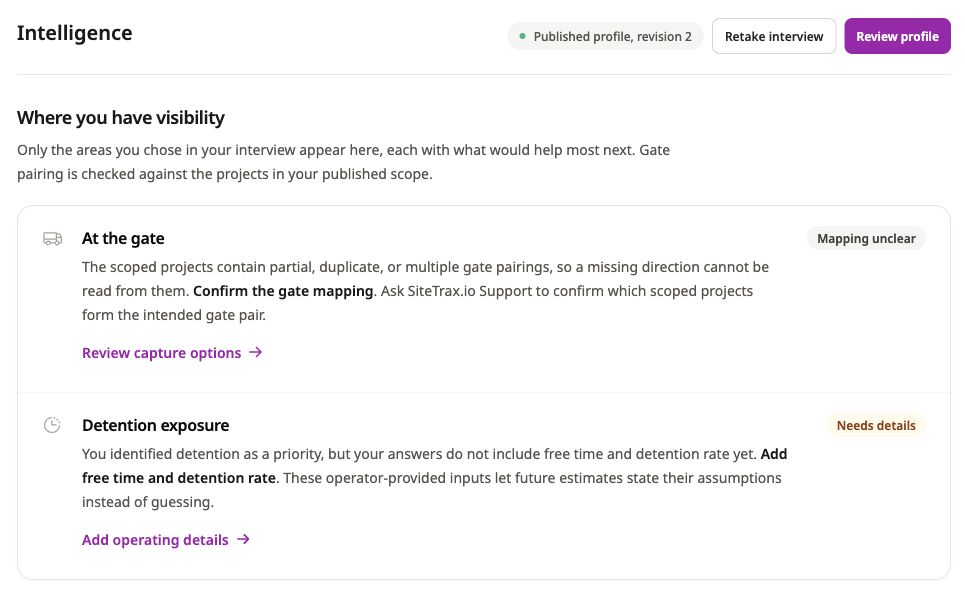
*Live application screenshot, captured 22 September 2026. The guidance and statuses shown are examples from this profile; yours depend on your answers and project scope. Select the image to view it at full size.*
The hub has three parts.
- **Profile status.** The published revision number, with **Retake interview** and **Review profile**. If you have an edit in progress, the hub says so and offers **Resume editing**, and confirms your published profile stays active while you finish.
- **Where you have visibility.** Cards for supported areas you chose in the interview, each stating what would help most next and carrying a status such as *Needs confirmation* or *Inputs ready*. Gate pairing is checked against the projects in your published scope. These are guidance cards based on your answers and available configuration; a ready input does not certify complete camera coverage, complete observation history or a billable charge.
- The hub provides assistant setup entry points. A card opens setup but does not confirm installation or successful OAuth authorization. Complete [your provider’s dedicated setup section](https://docs.sitetrax.io/books/ai-integrations), then verify access by asking the assistant to list the projects your account can access. A published profile is optional for ordinary MCP queries.
Assistant setup is documented in the dedicated provider sections.
## Asset detail
Selecting an identifier opens the record behind a reading: asset ID, project, scan and processing times, asset type, status code and heading, with an image and location where available. **Correct** and **Incorrect** let you tell SiteTrax.io whether the reading matches the image, and the full payload is available underneath.
Deep links follow the pattern `app.sitetrax.io/dashboard/assets/view/{asset_id}`. An assistant that returns a link will use this form, and it opens the same record you would reach by clicking through the gallery.