Getting Started
Sign in at app.sitetrax.io, check your account and shared projects, and set up the personalized Intelligence hub. Follow the interview and navigation walkthroughs, or use AI Integrations to connect an assistant directly; ordinary MCP access does not require a published profile.
- Accessing SiteTrax.io Intelligence
- User Requirements
- First Login Experience
- Navigating the Intelligence Interface
- Common Workflows
- Start Here: From Captured Data to a Useful Answer
Accessing SiteTrax.io Intelligence

SiteTrax.io Intelligence is part of the SiteTrax.io application. There is no separate product to install and no second set of credentials.
Sign in
- Go to https://app.sitetrax.io.
- Sign in with your SiteTrax.io account.
- Select Intelligence in the left navigation.

If Intelligence is not in the navigation
The Intelligence item appears once a profile has been published for your account. Before that, SiteTrax.io prompts you to complete the profile interview, and the direct address app.sitetrax.io/dashboard/intelligence opens the interview at the step you last reached rather than a hub.
Complete the interview once and the hub becomes available. See First Login Experience.
The legacy service portal
Earlier SiteTrax.io documentation referred to a service portal at service.sitetrax.io. That experience has been retired. Everything it did is now in the application at app.sitetrax.io, alongside Intelligence.
Update any saved bookmarks, internal runbooks or onboarding material that still point at service.sitetrax.io.
Assistant access
Follow your provider’s dedicated setup section for provider-specific setup and support. Use your active, email-verified SiteTrax.io account, complete OAuth authorization and verify the returned project list against the application.
User Requirements

What an individual needs before Intelligence is useful to them.
To use Intelligence in the application
| Requirement | Detail |
|---|---|
| An active SiteTrax.io account | Use your active SiteTrax.io account and complete email verification. Intelligence uses the same sign-in as the rest of the application. |
| Access to at least one project | A project is a site, yard, ramp, gate or facility. Without a shared project there is nothing in scope to report on. |
| A published profile | Complete and publish the profile interview to open the normal personalized Intelligence hub, with Intelligence enabled. You can revise and republish it later. Profile publication is not an OAuth prerequisite for an external assistant. |
| A current desktop browser | The application is a browser-based interface. No installation is required. |
To use Intelligence from an assistant
| Requirement | Detail |
|---|---|
| An active SiteTrax.io account with verified email | Complete verification first. Before starting the connection, check the account in the application. Authorize with the account that holds your project access and, if you want profile context, your published profile. |
| An assistant that supports remote MCP servers | The SiteTrax.io endpoint is remote and uses Streamable HTTP with OAuth. A client that only supports local servers cannot reach it. |
| Permission to add connectors | On team and enterprise plans this is usually restricted to owners or administrators. Check with whoever administers your assistant. Each person still authorizes their own SiteTrax.io account. |
Things that are commonly assumed and are not required
- You do not need a separate Intelligence licence key or a second password. An external assistant does require separate OAuth approval; signing in to the application alone does not grant it access.
- You do not need to prepare a manual data export. The assistant retrieves permitted results when it calls SiteTrax.io, and those results are sent to the assistant provider you choose.
- You do not need administrator rights in SiteTrax.io to publish your own profile.
Follow your provider’s dedicated setup section for provider-specific setup and support. Use your active, email-verified SiteTrax.io account, complete OAuth authorization and verify the returned project list against the application.
First Login Experience

The first time you open SiteTrax.io with Intelligence enabled, you are invited to complete a short profile interview. It records your priorities and personalizes the native coverage review. Publishing also makes selected facts and priorities available for a connected assistant to retrieve when relevant; it does not guarantee how that assistant answers.
1. The invitation
SiteTrax.io opens a welcome panel over the dashboard explaining that Intelligence helps you understand what is happening across your operation, identify exceptions faster, and focus attention where it matters. It explains that a short interview tailors Intelligence to your priorities and that your draft is saved so you can resume later. Select Start interview.
If you dismiss the panel, a Finish setup card remains in the left sidebar showing how far you got, with a Resume button.
2. Your profile questions
The interview covers the topics below. Follow the questions and progress shown for your account; additional questions and available choices can vary.
- Who are we talking to? Name, title, company and website.
- What do you do most days? Run a gate, run a yard, answer customers, or watch the numbers.
- What are you actually trying to get done? Your goals, which can differ from your title.
- Where do you need visibility? Gate, yard, dock, road, or a second site. Include places nothing is watching yet.
- What else do you already have? A yard management system, a TMS, hand-kept spreadsheets, detention invoices, appointment data, or nothing outside SiteTrax.io.
- What costs you the most? Detention and per diem, trucks waiting, units you cannot find, or disputes without proof.
- Add any operating numbers you know. Optional, and skippable.
- How much do you want to read? Just the answer, answer plus why, or show the working. You can also store custom instructions for tone, focus and terminology.

Progress is listed down the left, and you can jump back to any answered question. A draft-saved indicator confirms your work is held as you go.
3. Operating details
The operating details can depend on the costs you selected. For detention and per diem, the profile can record units charged in a normal month, free time, and a rate with its currency, billing basis and effective date. Only enter values you know and identify the charge they describe. Saving these inputs does not independently verify a tariff, invoice or liability.

4. Review and publish
The review screen lists your saved draft answers before you publish, together with the timezone inferred from your browser. That timezone is saved as user context; it does not establish a facility timezone or silently change the time window of an operational query.
Select Publish profile. Publishing creates an immutable revision. You can reopen it later without replacing its history.

5. Your working brief
After publishing, SiteTrax.io shows the working brief generated from your answers. The brief, custom AI instructions and response-style preferences are saved with the revision, but are excluded from the public MCP profile response. A connected assistant can retrieve a compact selection of published facts and priorities when relevant. Ask for your preferred tone or level of explanation directly in the assistant.
Select Return to Intelligence to reach the hub.
Publishing a profile unlocks the normal personalized hub. It does not connect an assistant. Ordinary authorized MCP queries can work without a profile. Before starting assistant setup, verify your SiteTrax.io account email, then follow Account access and OAuth.
Only answers you explicitly confirmed are published. Values shown from your account for display are not silently promoted into stored facts. An unfinished draft or a skipped sample experience does not become published MCP profile context.
Navigating the Intelligence Interface

The application uses a shared left navigation. Intelligence is a destination within it. The items below are common destinations; visibility depends on your role, project access, enabled features and profile setup.
Left navigation
| Item | What it shows |
|---|---|
| Dashboard | Volume, asset and scan totals for the selected period and project, with recent scans. |
| Intelligence | Your published profile, your notifications, the coverage review, and assistant connections. |
| Videos | Recordings, with the number of assets found in each. |
| Assets | The gallery of individual readings, with an exceptions filter. |
| Projects | Sites and yards, their users and their integrations. |
A global search sits above the navigation and opens with Ctrl and K. Your account and sign-out are at the bottom of the sidebar, and the application version is shown beneath them.
The three filters
Dashboard, Videos and Assets share the same three controls across the top. They apply together, and getting an unexpected result is more often a filter than a data problem.
- Date range such as Sep 1st 2026 to Sep 4th 2026.
- Period such as This Month.
- Project, which limits everything below it to one site.
The Intelligence hub
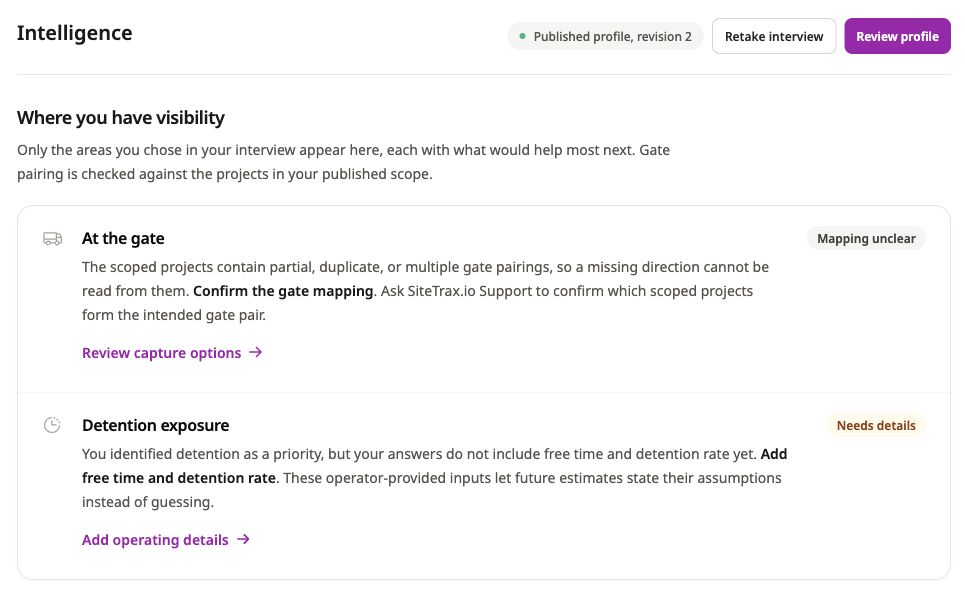
Live application screenshot, captured 22 September 2026. The guidance and statuses shown are examples from this profile; yours depend on your answers and project scope. Select the image to view it at full size.
The hub has four parts.
- Profile status. The published revision number, with Retake interview and Review profile. If you have an edit in progress, the hub says so and offers Resume editing, and confirms your published profile stays active while you finish.
- Notifications. The alerts, expectation watches and digests you created through an assistant, with their last match, last send, projects and expiry. Filter by Current or Ended and by kind, and pause, resume or cancel each one. See Alerts and Scheduled Digests.
- Where you have visibility. Cards for supported areas you chose in the interview, each stating what would help most next and carrying a status such as Needs confirmation or Inputs ready. Gate pairing is checked against the projects in your published scope. These are guidance cards based on your answers and available configuration; a ready input does not certify complete camera coverage, complete observation history or a billable charge.
- The hub provides assistant setup entry points. A card opens setup but does not confirm installation or successful OAuth authorization. Complete your provider’s dedicated setup section, then verify access by asking the assistant to list the projects your account can access. A published profile is optional for ordinary MCP queries.
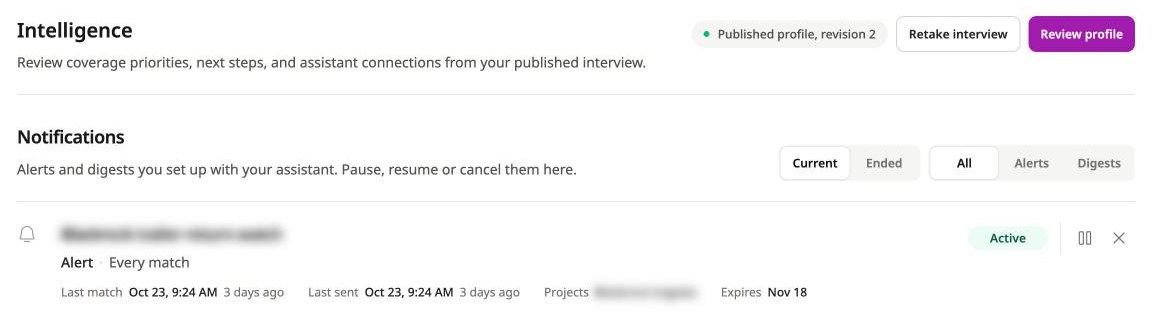
Live application screenshot, captured 26 October 2026. Customer names are blurred.
Assistant setup is documented in the dedicated provider sections.
Asset detail
Selecting an identifier opens the record behind a reading. The header shows the identifier, with the check digit boxed for a container, its equipment type and any paired chassis, and the project and scan time. Video opens the source recording, Share and Public page let you pass the record on, and Correct and Incorrect tell SiteTrax.io whether the reading matches the image.
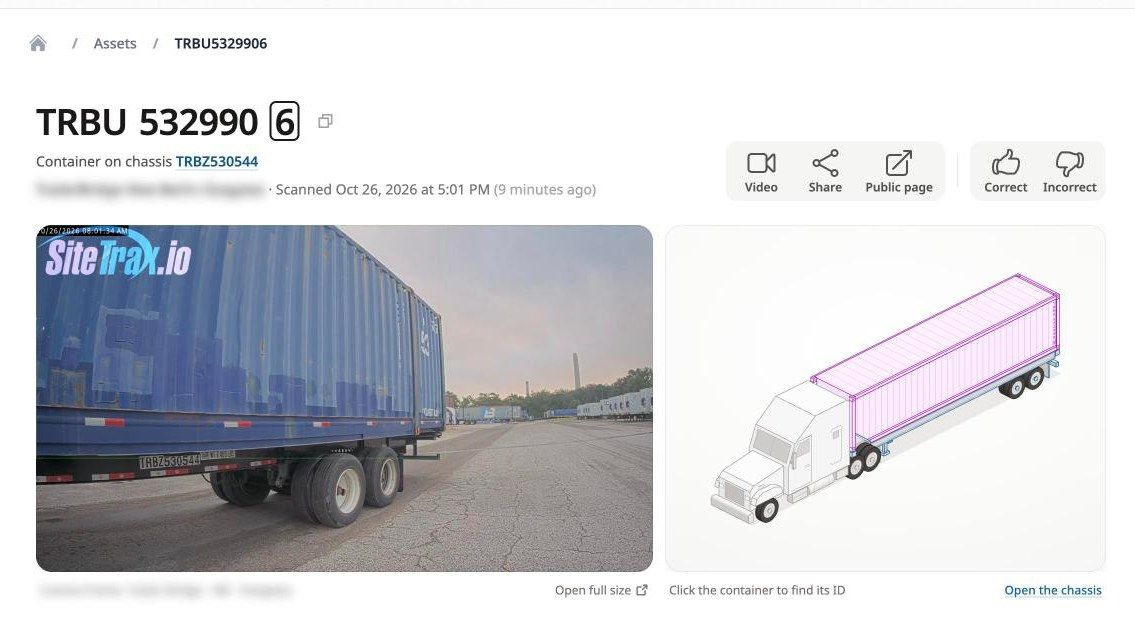
Live application screenshot, captured 26 October 2026. Project and camera names are blurred.
Below the camera frame and the equipment diagram, the record shows the direction of travel, the read result, the registered owner of a container prefix, the camera, and a map of where the reading was captured. Further down are:
- Insights. A fact sheet computed from the record: the read and its status, check-digit validity and registered owner, the detection time, project, camera and direction, how the object was tracked, any chassis pairing, earlier sightings in the same project, and reviewer feedback.
- Timeline. Earlier and later sightings of the same identifier, with direction and time between them.
- Full payload. The stored record as JSON, with a copy control.
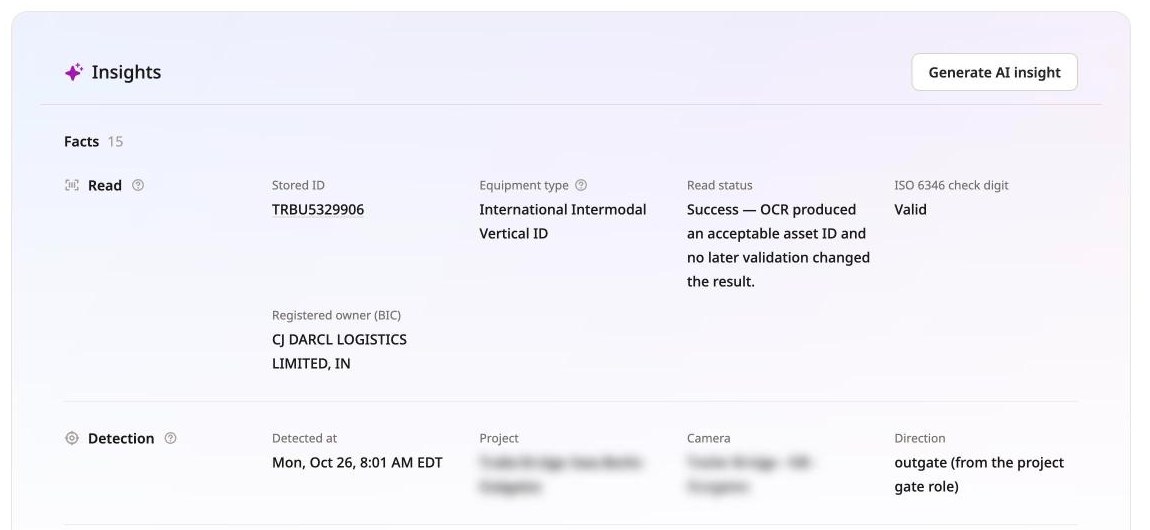
Live application screenshot, captured 26 October 2026. Project and camera names are blurred.
AI insights
Generate AI insight asks a language model to write a short summary of what is notable about the record. The model receives only the facts listed under Insights on that page, including any reviewer comments, each observation must cite those facts, and every number must appear in them. The insight is stored with the record, so other people who can see the asset see the same text, and it is marked out of date when the facts change.
The first time you generate an insight, SiteTrax.io asks you to agree to send those facts to an AI model, with a link to the privacy policy. One agreement covers every asset until the terms change. Choose Not now to keep using the page without insights. Generation is rate-limited per asset and per user.
Deep links follow the pattern app.sitetrax.io/dashboard/assets/view/{asset_id}. An assistant that returns a link will use this form, and it opens the same record you would reach by clicking through the gallery.
Common Workflows

Five things operators do most often, and the shortest route to each.
Find one unit
- Open Assets.
- Widen the date range far enough to cover when the unit was likely on site.
- Search for the identifier.
- Open the record to see the time, direction, project and image.
From an assistant, ask where a specific container was last observed and name the identifier in full. Include the site and time period when you know them. The latest observation is evidence of where it was seen at that time, not a guarantee of its current location.
See what moved today
- Open Dashboard.
- Set the period and the project.
- Read the asset and scan totals, then scroll to recent scans for the individual readings and their direction.
Review what needs attention
- Open Assets.
- Turn on Filter Exceptions.
- Work the list, opening records where the reading and the image disagree.
- Mark a record Incorrect where the reading is wrong.

Check the recording behind a reading
- Open Videos.
- Match on time and project, using the asset count to find recordings that produced readings.
- Play the recording, where it is available to your account, to confirm what happened.
This is the usual path when a customer disputes a movement and you want to review the footage. Through MCP, an assistant retrieves stored video metadata, thumbnails and record links; it does not stream the recording or create a temporary playback URL.
Answer a question without building a query
Once an assistant is connected, ask in plain language and name SiteTrax.io, the site and the period. For example: summarize container and chassis activity at the Utah site for the last seven days and break the results down by status code and asset type.
See Using MCP with SiteTrax.io for how to phrase these well.
If a result looks wrong, check the date range, project and filters first. Also compare the same measure: stored result rows, distinct identifier values and inferred visits answer different questions. Ask the assistant to state its time window, selected projects, filters and any incomplete results.
Start Here: From Captured Data to a Useful Answer
SiteTrax.io turns compatible camera captures into structured operational records. SiteTrax.io Intelligence uses those records for questions, analysis and supported workflows. Choose the job you need to do.
| I need to… | Start here |
|---|---|
| Understand what Intelligence does | What is SiteTrax.io Intelligence? |
| Ask about my assets | Choose your provider’s setup section |
| Get an alert or routine summary | Alerts and Scheduled Digests |
| Send data to my system | Project integration routes |
| Set up capture | Fixed cameras, Android Capture or Snap |
| Resolve an access or data issue | Troubleshooting Guide |
For your first assistant query, use a shared project and an identifier you can verify in the application. Check the returned time, site and evidence before building a recurring workflow around the result.