Cursor
Connecting Cursor
Use Cursor to ask questions about authorized SiteTrax.io observations and analytics while you work. Cursor connects to the SiteTrax.io MCP server as a remote server, and SiteTrax.io continues to enforce your account’s project access.
Before you start
Use an active, email-verified SiteTrax.io account with the projects you need, and a current version of Cursor with MCP support. A published Intelligence profile is optional. Sign in to app.sitetrax.io in your default browser with the account you want Cursor to use, because the consent page uses that session.
No API key, token or SiteTrax.io password goes into the Cursor configuration. Cursor registers itself with SiteTrax.io automatically and you approve access on the SiteTrax.io consent page.
Step 1: Open Cursor’s MCP settings
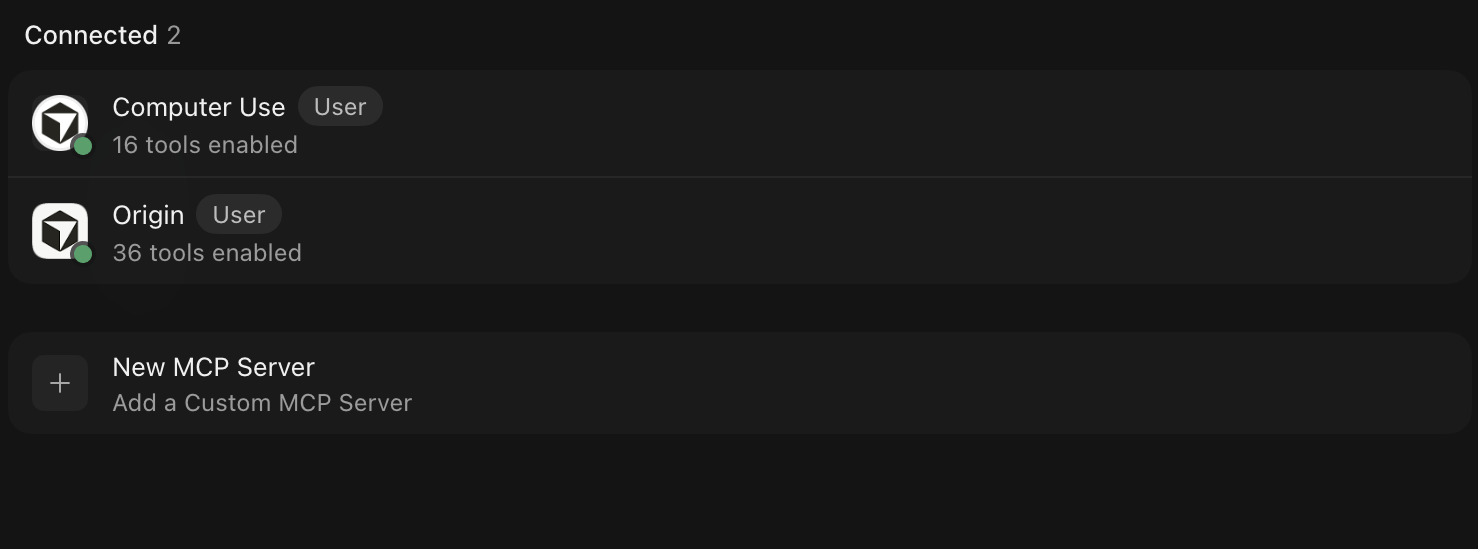
In Cursor, open Customize → MCPs (in the editor: Cursor Settings → Tools & MCP). Servers you already use are listed under Connected. Select New MCP Server.
Step 2: Add the SiteTrax.io server
Cursor opens your MCP configuration file, ~/.cursor/mcp.json. To make SiteTrax.io available in only one repository, use .cursor/mcp.json in that project instead.
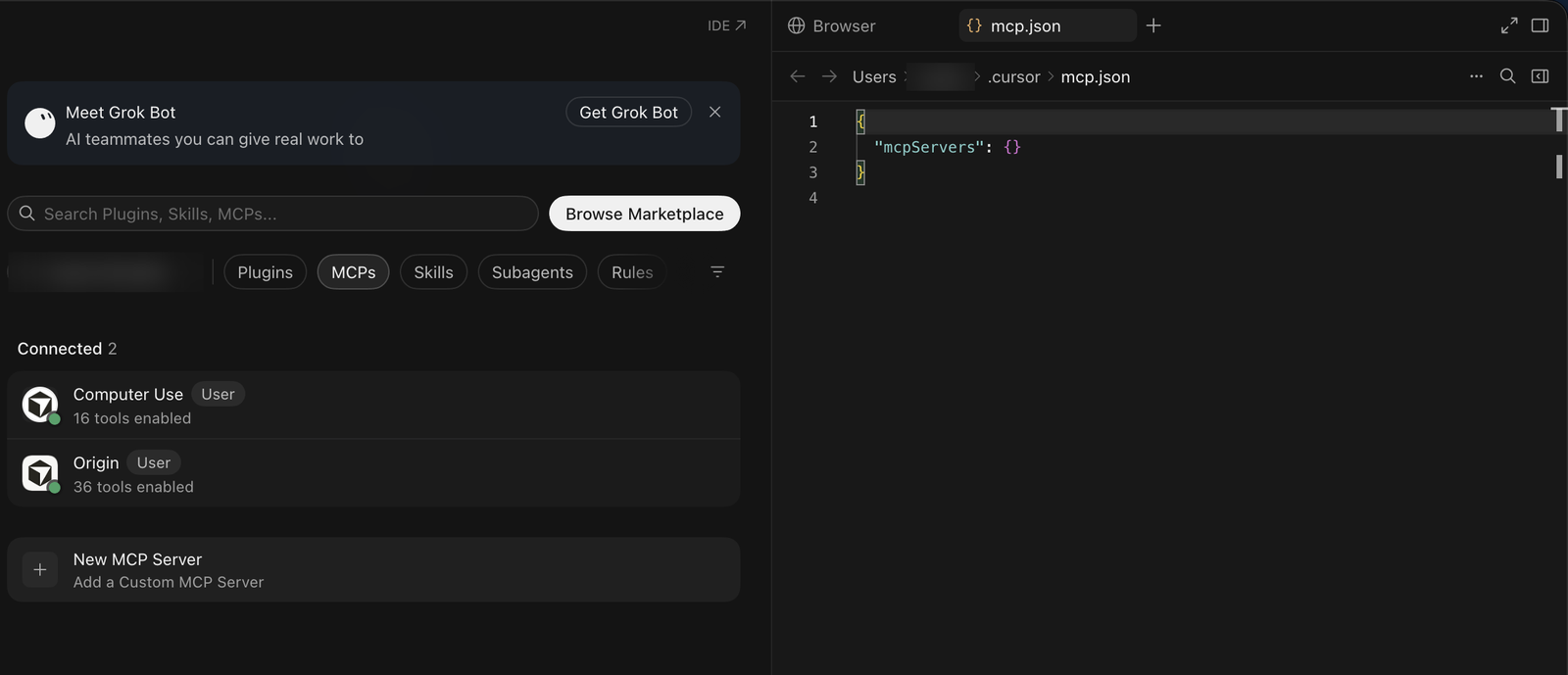
Add the sitetrax entry and save the file. If the file already lists other servers, add the entry alongside them.
{
  "mcpServers": {
    "sitetrax": {
      "url": "https://mcp.sitetrax.io/mcp"
    }
  }
}
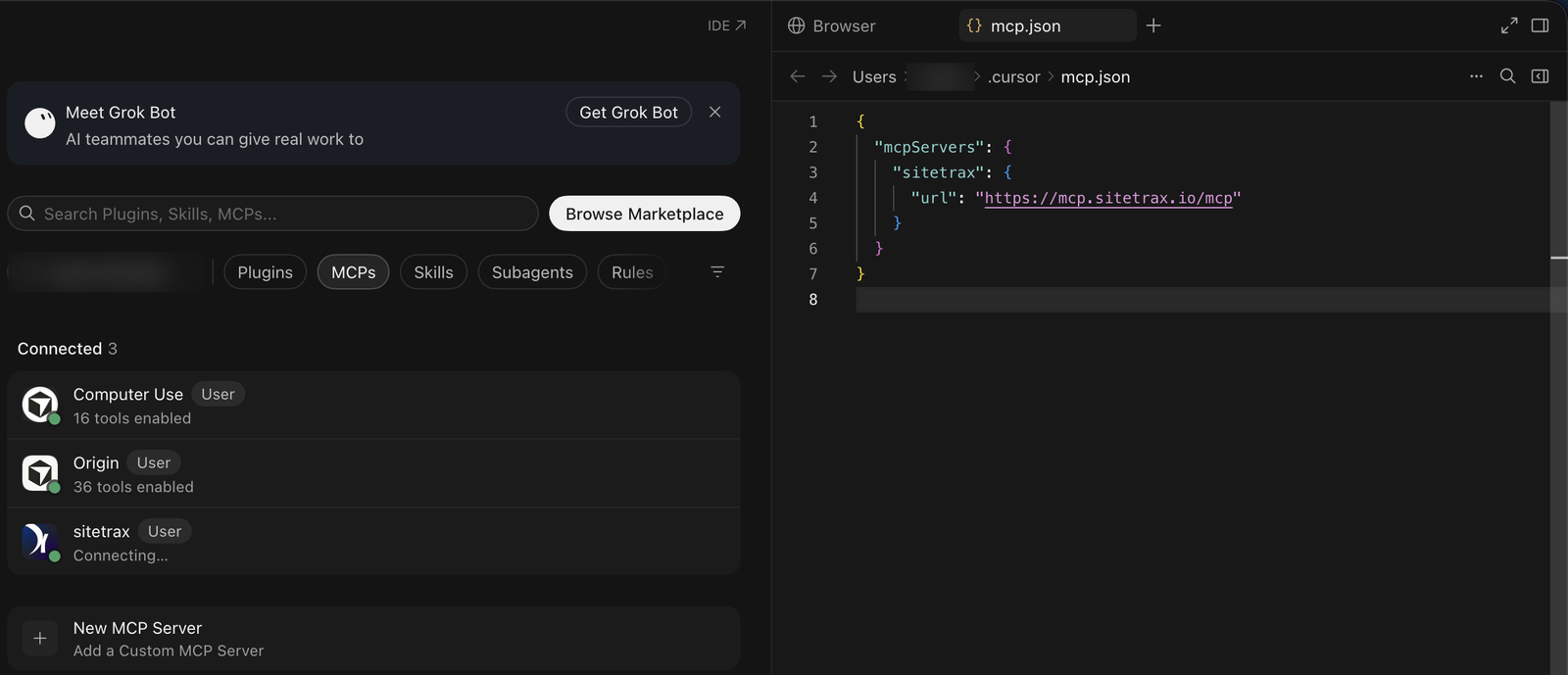
Use the full endpoint, including /mcp. Do not add headers, a bearer token or a client secret. After you save, sitetrax appears in the list as Connecting….
Step 3: Authenticate
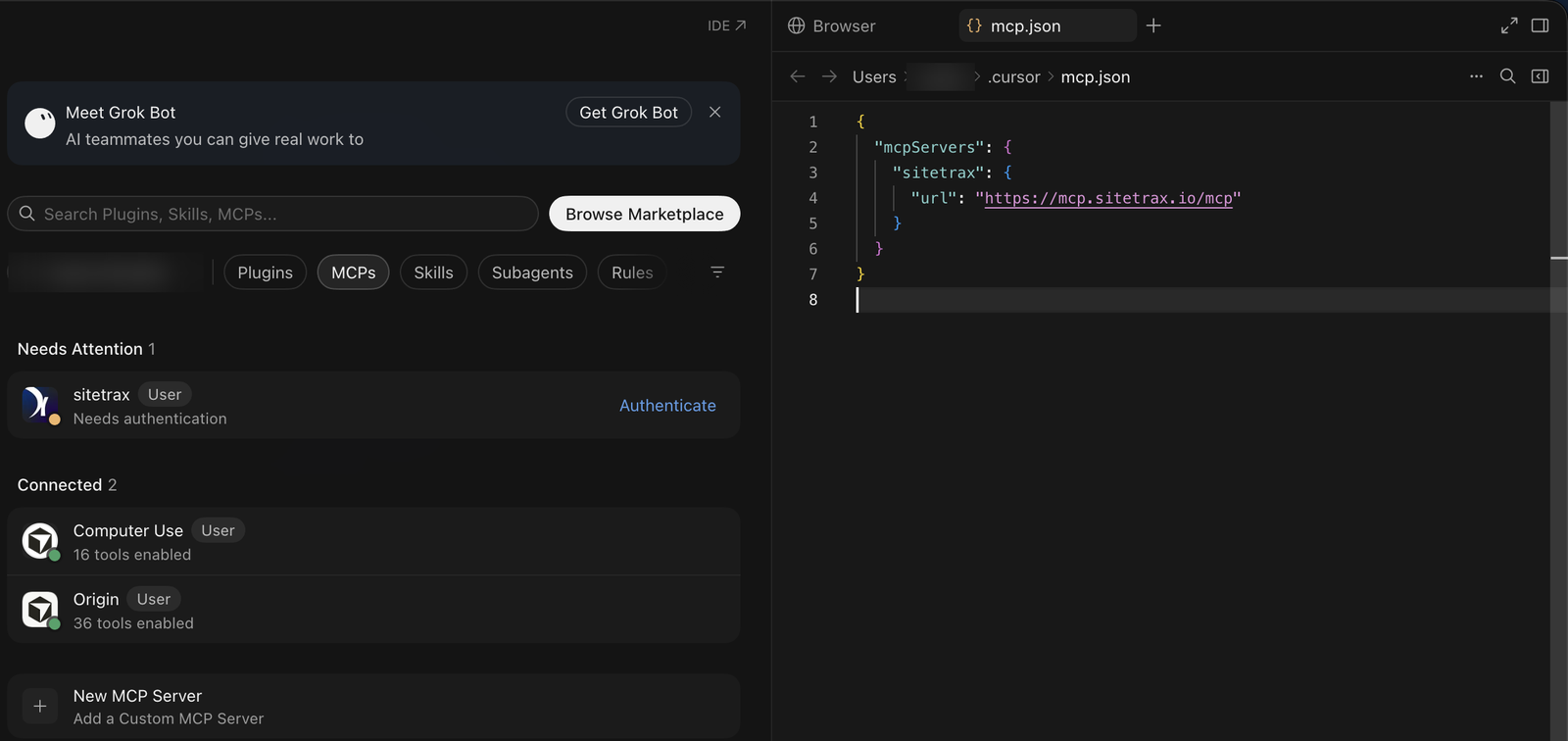
Within a few seconds sitetrax moves to Needs Attention with the status Needs authentication. Select Authenticate.
Step 4: Review and allow access
Your browser opens the SiteTrax.io consent page, Connect Cursor to SiteTrax.io. It shows what the connection can do:
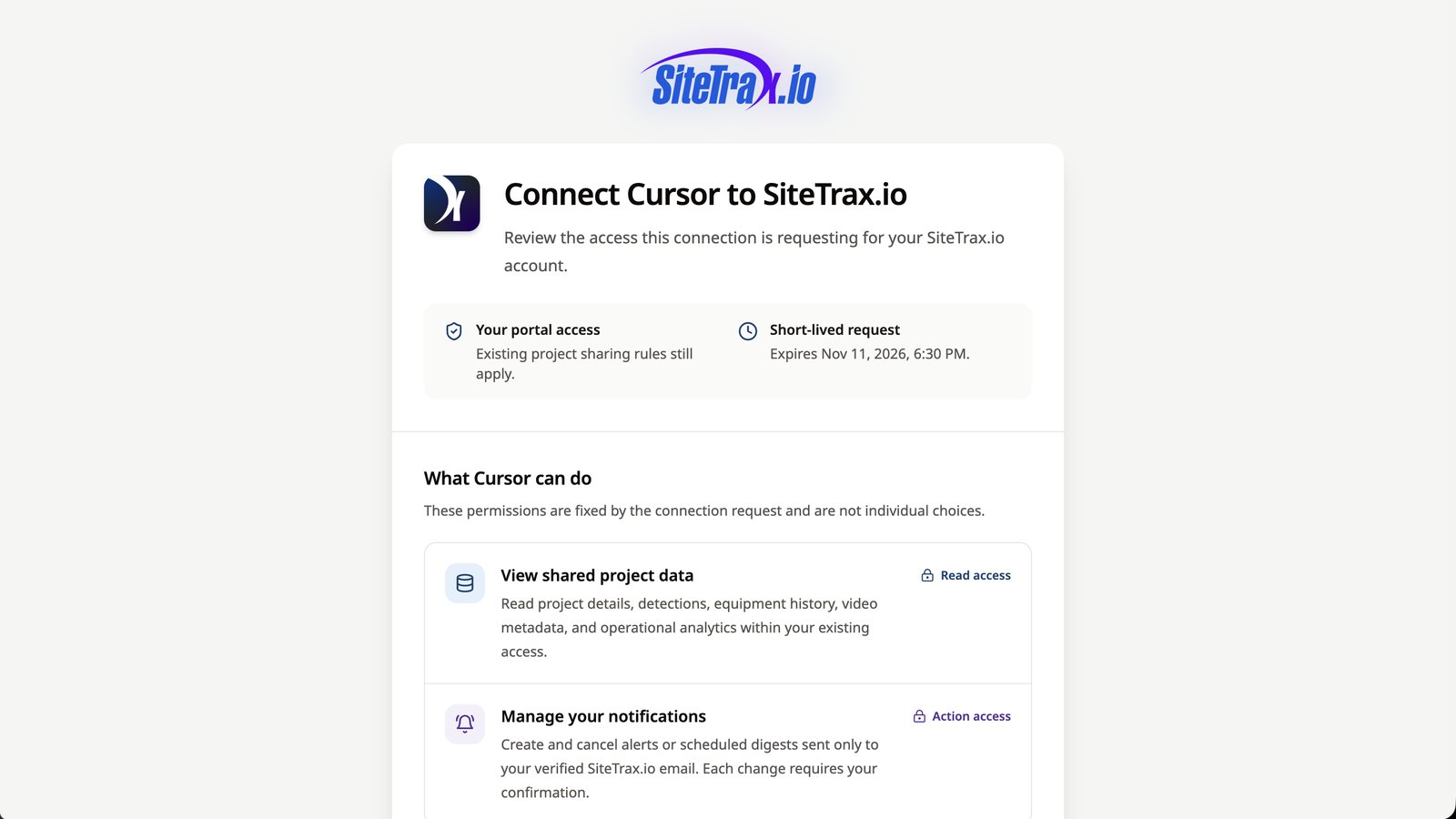
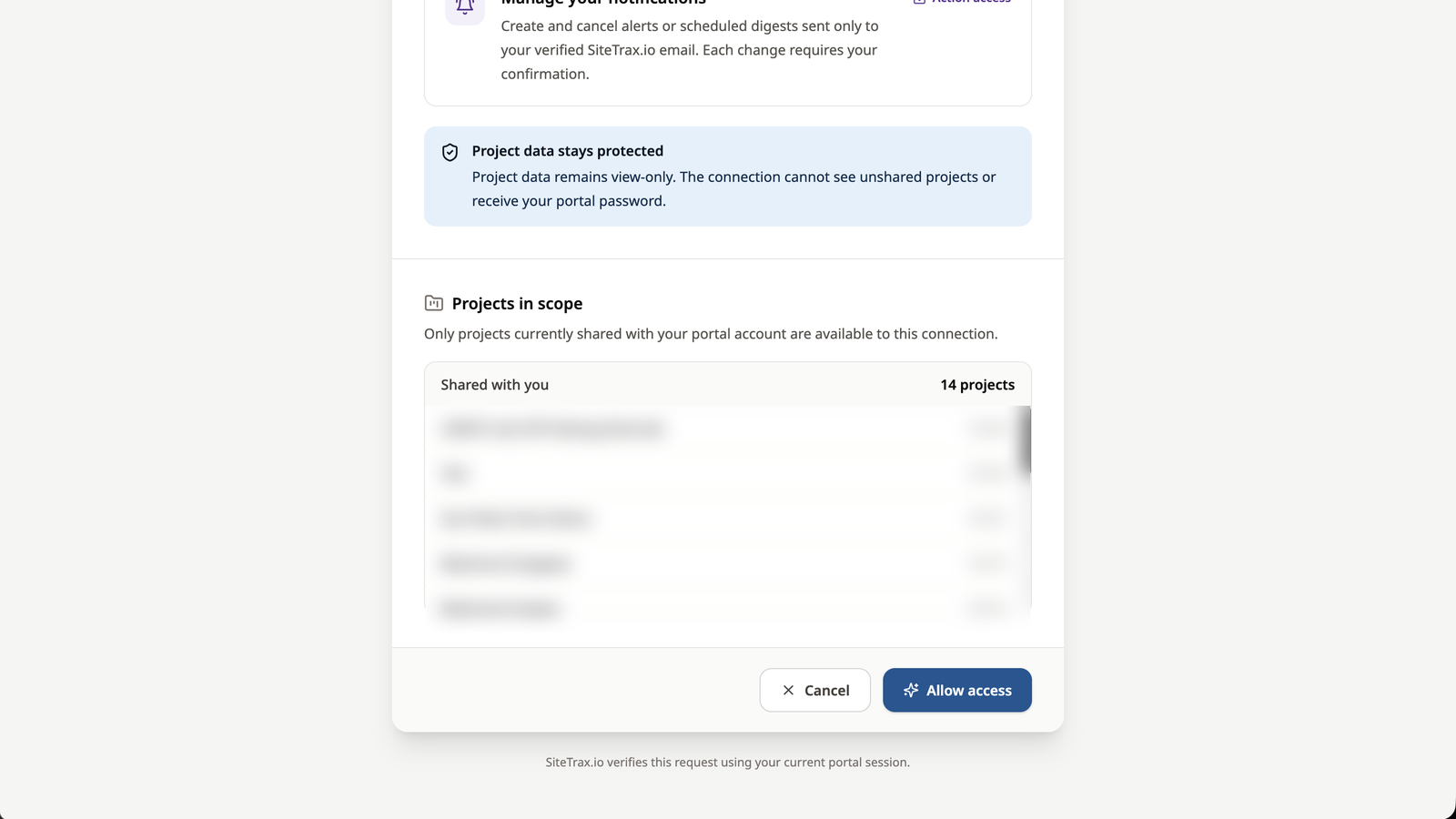
Scroll down to Projects in scope to check which projects are shared with the signed-in account. If the list is wrong, select Cancel and sign in with the correct account. Otherwise, select Allow access.
Step 5: Return to Cursor
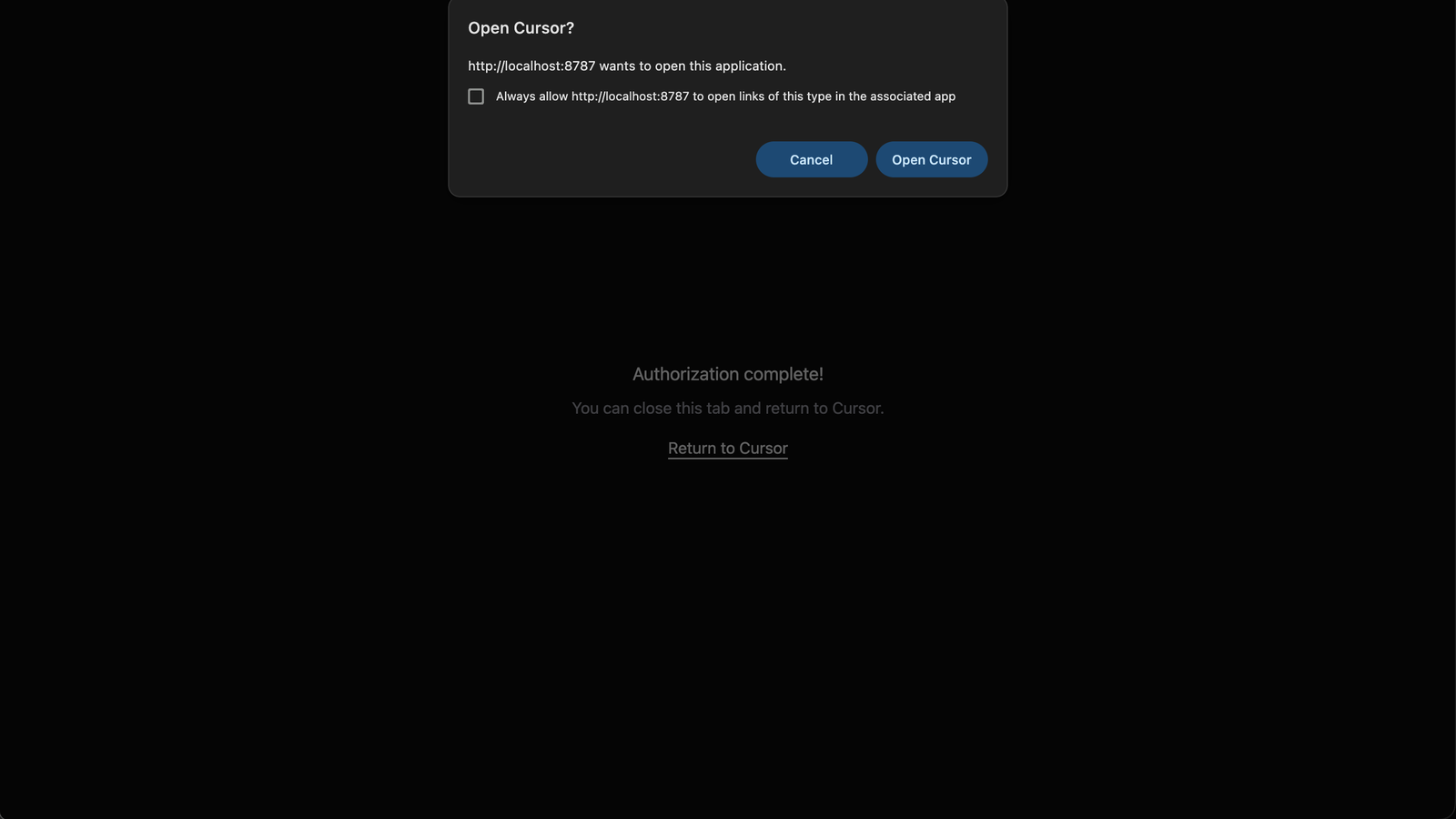
The browser shows Authorization complete!. If the browser asks whether to open Cursor, select Open Cursor; otherwise select Return to Cursor or close the tab.
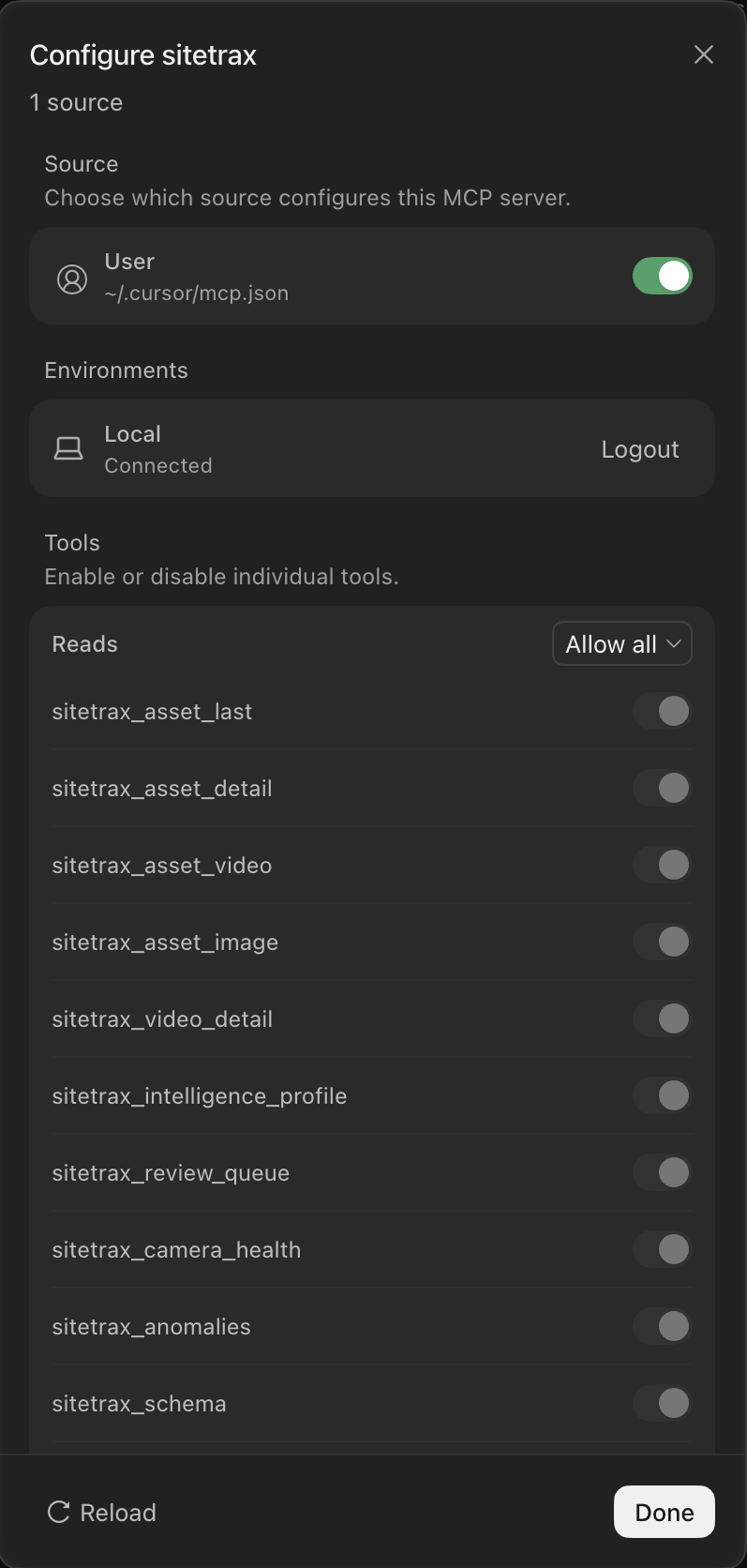
Back in Cursor, sitetrax is listed under Connected with its tools and resources enabled.
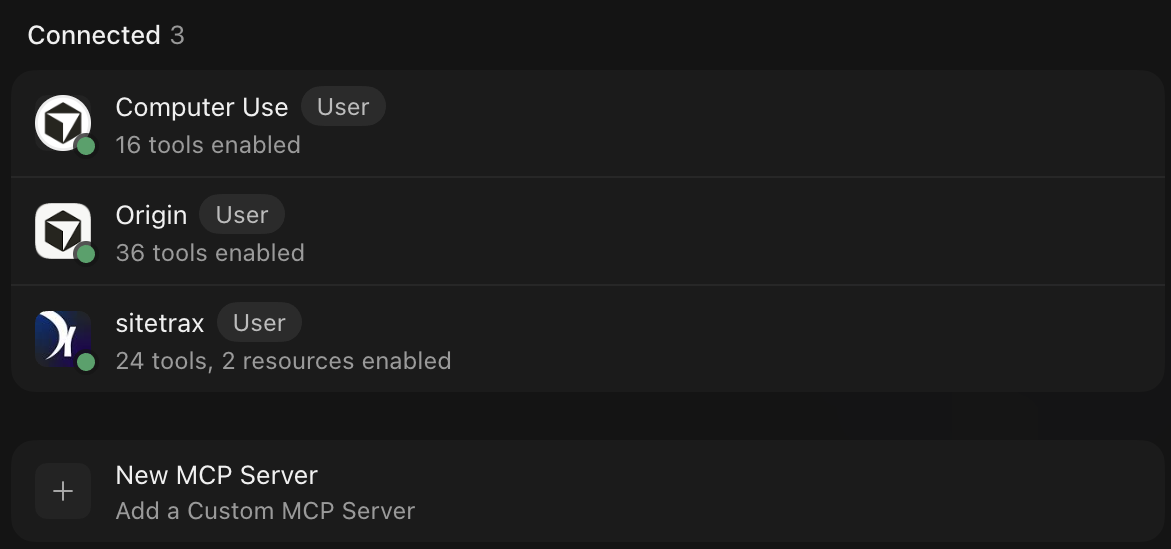
Select sitetrax to see its tools, turn individual tools on or off, or Logout to remove Cursor’s sign-in.
Step 6: Check the connection
Start a new chat in Cursor and ask:
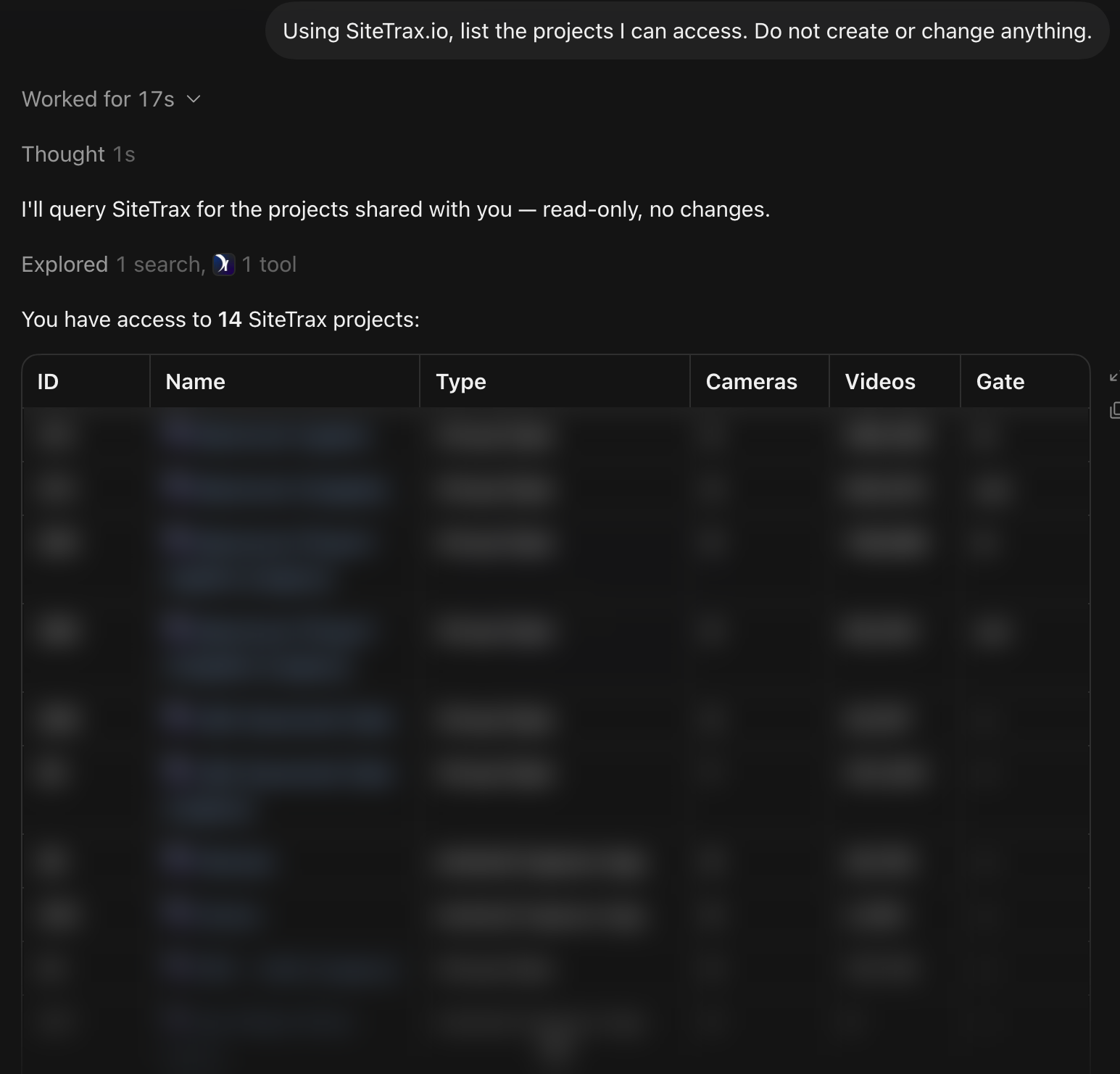
Using SiteTrax.io, list the projects I can access. Do not create or change anything.
Cursor calls the SiteTrax.io tool and lists your projects. The count should match Projects in scope on the consent page and Projects in app.sitetrax.io for the same account. Then request a known equipment observation with its time, timezone, project and record link. A green status alone does not prove that the expected account is connected.
Use the result in your work
Cursor is useful when SiteTrax.io data feeds code, reports or integration work, for example:
Using SiteTrax.io, show me the fields returned for an asset observation, then draft a CSV export script for yesterday’s gate detections at [project]. Do not run it.
Ask Cursor to use SiteTrax.io’s server-side counts and summaries for totals and trends rather than paging through raw records.
Permissions, disconnecting and troubleshooting
Cursor requests both read access and sitetrax:notifications:write. Read access covers authorized queries and notification history. Notification access allows creating or cancelling supported alerts and digests. Confirm the exact proposed notification before creation, and review tool calls before you approve them in Cursor.
Each Cursor sign-in appears as a separate connection under Assistant Connections on the Intelligence page. Disconnecting it there stops Cursor from renewing access, and existing access ends within about an hour. To sign out from Cursor itself, use Logout in the sitetrax dialog. See Account Access and OAuth.
- sitetrax stays on Connecting… or shows an error: confirm the URL is exactly
https://mcp.sitetrax.io/mcp, then use Reload in the sitetrax dialog or restart Cursor. - The browser does not return to Cursor: after Authorization complete!, switch back to Cursor manually; the server connects on its own.
- Wrong or empty project list: select Logout in the sitetrax dialog, sign in to app.sitetrax.io with the intended account, then select Authenticate again. Check project sharing if the list is still wrong.
- Cursor answers without using SiteTrax.io: confirm sitetrax is connected and its tools are enabled, and ask Cursor explicitly to use SiteTrax.io.